
How to Set Up a Custom Domain for Your Flipbooks
Host your flipbooks on your own domain with CNAME setup. Step-by-step guide to configuring custom domains for a professional, branded experience.

Published on January 12, 2026 · 8 min read
Why Use a Custom Domain for Your Flipbooks?
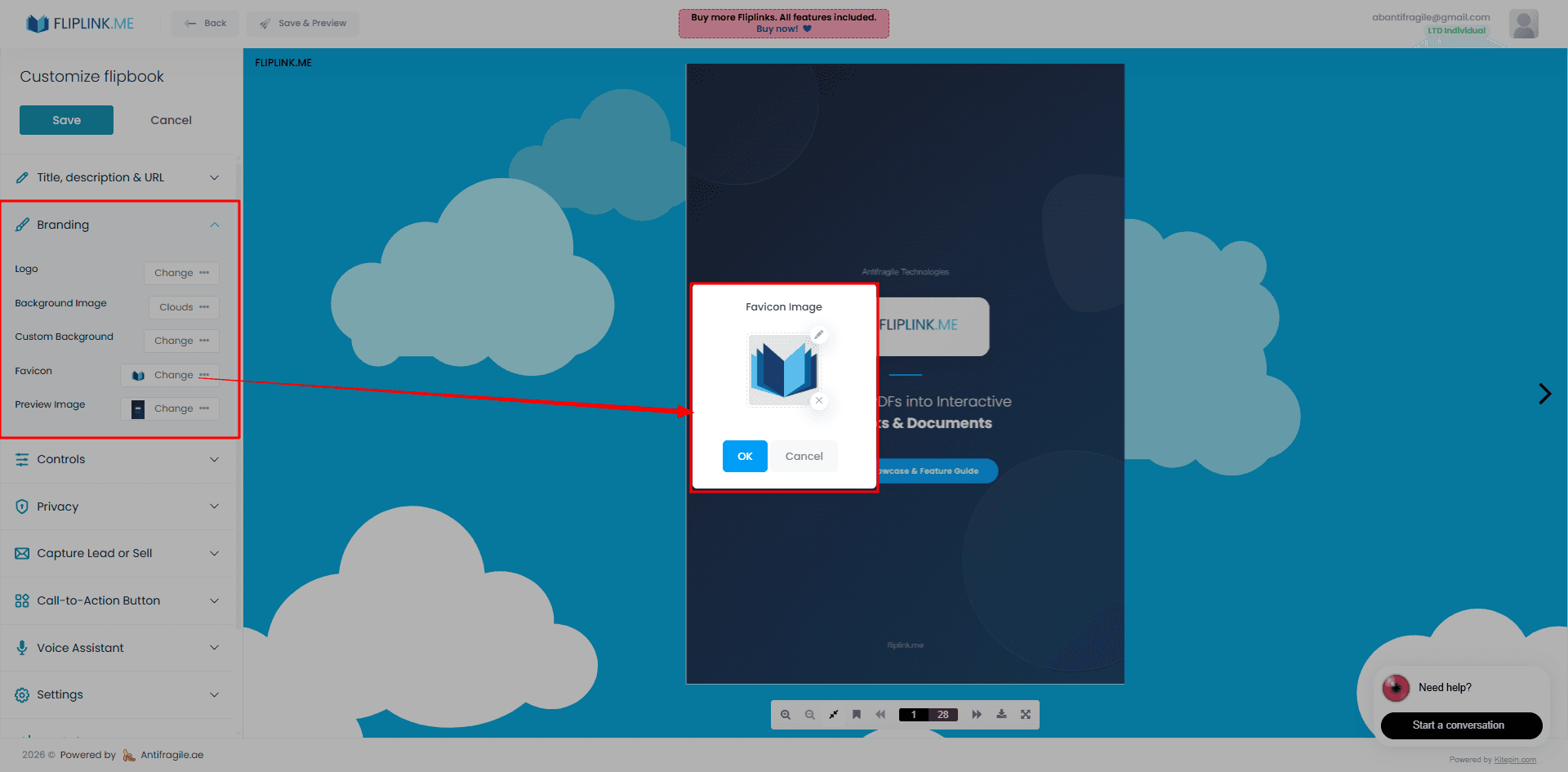
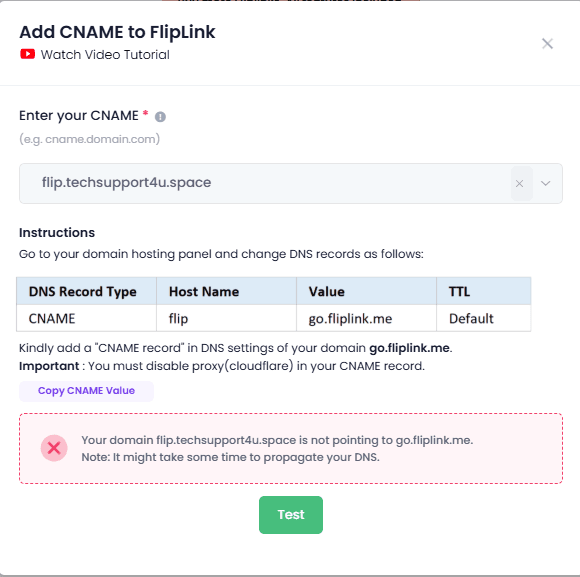
When you share a flipbook, the URL is one of the first things people notice. A generic subdomain works fine for testing, but if you're sending catalogs to clients, pitching investors, or embedding publications on your website — a custom domain changes the game.
Instead of sharing go.fliplink.me/your-flipbook, your readers see something like docs.yourbrand.com/catalog. That's instant credibility. It tells your audience that you own this content and that your brand is behind it.
Here's what a custom domain gets you:
- Brand consistency — your domain, your identity, everywhere
- Higher trust — readers are more likely to engage with content on a recognizable domain
- Better SEO — links pointing to your domain build your authority, not someone else's
- Professional appearance — perfect for client-facing materials, proposals, and sales documents
- Sale mode access — if you want to sell documents directly, a CNAME custom domain is required
The best part? FlipLink doesn't limit how many custom domains you can add. Whether you run one brand or twenty, you can map a unique domain to each.
How CNAME Mapping Works
Before we dive into the setup, let's quickly cover what's actually happening behind the scenes.
A CNAME record (Canonical Name) is a type of DNS record that points one domain to another. When you create a CNAME record for docs.yourbrand.com pointing to FlipLink's servers, you're telling the internet: “When someone visits this address, serve the content from FlipLink.”
Your flipbooks still live on FlipLink's infrastructure — you get all the speed, reliability, and features — but visitors see your domain in the address bar.
Think of it like a custom storefront. The warehouse (FlipLink) handles storage and delivery, but the shop window has your name on it.
What You'll Need
- A domain you own (e.g.,
yourbrand.com) - Access to your domain's DNS settings
- A FlipLink account with at least one published flipbook
- About 10 minutes of setup time
Step-by-Step: Setting Up Your Custom Domain
Step 1: Choose Your Subdomain
Pick the subdomain you want to use. Common choices include:
| Subdomain | Best For |
|---|---|
docs.yourbrand.com | General documents and flipbooks |
catalog.yourbrand.com | Product catalogs |
read.yourbrand.com | Magazines and publications |
portfolio.yourbrand.com | Creative portfolios |
resources.yourbrand.com | Gated content and lead magnets |
You can use any subdomain you like — just make sure it's not already in use for something else.
Step 2: Add the Custom Domain in FlipLink
- Log in to your FlipLink dashboard
- Navigate to Settings → Custom Domains
- Click Add Domain
- Enter your chosen subdomain (e.g.,
docs.yourbrand.com) - FlipLink will display the CNAME target — copy this value
Keep this tab open. You'll need that CNAME target for the next step.
Step 3: Create the CNAME Record in Your DNS Provider
Log in to wherever you manage your domain's DNS. This is usually your domain registrar or a service like Cloudflare. You'll need to create a new DNS record with these values:
- Type: CNAME
- Name/Host: your subdomain (e.g.,
docs) - Value/Target: the CNAME target FlipLink gave you
- TTL: 3600 (or “Auto”)
Step 4: Verify the Connection
Go back to your FlipLink dashboard and click Verify. If DNS has propagated, you'll see a green checkmark. If not, give it a few minutes and try again — DNS changes can take anywhere from a few minutes to 48 hours, though most propagate within 30 minutes.
DNS Configuration for Popular Providers
Every DNS provider has a slightly different interface. Here's how to add a CNAME record on the most common ones.
Cloudflare
- Log in to your Cloudflare dashboard
- Select your domain
- Go to DNS → Records
- Click Add Record
- Set Type to CNAME, Name to your subdomain, Target to the FlipLink CNAME value
- Important: Set the proxy status to DNS Only (grey cloud), not Proxied. This ensures SSL works correctly.
- Click Save
GoDaddy
- Log in to GoDaddy and go to My Products → DNS
- Under Records, click Add
- Select Type CNAME
- Enter your subdomain in the Name field
- Paste the FlipLink CNAME target in the Value field
- Set TTL to 1 Hour
- Click Save
Namecheap
- Log in to Namecheap and go to Domain List → Manage
- Click the Advanced DNS tab
- Click Add New Record
- Choose CNAME Record
- Set Host to your subdomain, Value to the FlipLink CNAME target
- TTL: Automatic
- Click the green checkmark to save
Other Providers
The process is nearly identical across providers like Route 53 (AWS), Google Domains, Hover, and others. Look for a section labeled DNS, DNS Management, or Zone Editor, then add a CNAME record with the same values.
Free: Pdf To Flipbook
Turn your PDF into a beautiful 3D page-flipping flipbook.
Try it free — no sign-up neededEnabling HTTPS on Your Custom Domain
Security matters — both for your visitors and for search engines. FlipLink automatically provisions an SSL certificate for your custom domain once the CNAME is verified. Here's what to know:
- Automatic SSL — no manual certificate uploads needed
- Certificate provisioning typically takes a few minutes after DNS verification
- HTTPS is enforced — all HTTP traffic redirects to HTTPS automatically
- If you use Cloudflare, make sure the SSL mode is set to Full (not Flexible) to avoid redirect loops
Once HTTPS is active, your flipbooks will load securely at https://docs.yourbrand.com — complete with the padlock icon your visitors expect.
Selling Documents on Your Custom Domain
If you plan to sell PDFs or flipbooks online, a custom domain isn't just nice to have — it's required. FlipLink's sale mode uses Stripe for payments, and the checkout experience needs to happen on a domain you control.
With a CNAME set up, you can:
- Sell individual documents with one-time payments
- Host your sales pages on a branded URL
- Build trust with buyers who see your domain at checkout
- Combine with white-label publishing to remove all FlipLink branding
This is especially powerful for creators, course builders, and businesses selling premium content. Pair it with branding and design customization to make every touchpoint feel unmistakably yours.
Troubleshooting Common DNS Issues
DNS can be finicky. If things aren't working, run through these common fixes.
“Domain Not Verified” After Adding CNAME
- Wait it out. DNS propagation can take up to 48 hours, though it's usually much faster.
- Double-check the CNAME value. A single typo will prevent verification. Copy-paste instead of typing manually.
- Check for conflicting records. If you have an existing A record or another CNAME for the same subdomain, delete it first. You can't have both.
SSL Certificate Not Provisioning
- Make sure the CNAME is verified first — SSL provisioning starts after verification
- If using Cloudflare, ensure the proxy is set to DNS Only (grey cloud) during initial setup
- Wait 15–30 minutes after verification, then check again
Flipbook Shows a 404 or Blank Page
- Confirm the flipbook is published, not just saved as a draft
- Check that the flipbook is assigned to the correct custom domain in your FlipLink settings
- Clear your browser cache and try an incognito window
Redirect Loops
- This almost always happens with Cloudflare when SSL mode is set to “Flexible” instead of “Full”
- Go to Cloudflare → SSL/TLS → set encryption mode to Full
Useful DNS Check Tools
- dnschecker.org — verify propagation across global DNS servers
digornslookupcommands in your terminal for quick local checks- Your browser's developer tools (Network tab) to spot redirect issues
Bring It All Together
A custom domain is one of the simplest changes you can make that has an outsized impact on how professional your publications look. Combined with FlipLink's flipbook creation tools and branding options, you can build an experience that feels entirely your own — without managing any hosting infrastructure.
And if you want to take it further, check out our guide on how to brand your flipbook for tips on logos, colors, and creating a cohesive reading experience.
Ready to Put Your Brand Front and Center?
Setting up a custom domain takes about 10 minutes and instantly elevates every flipbook you publish. Whether you're sharing client proposals, selling digital products, or distributing marketing materials — your domain makes all the difference.
Start your free FlipLink account and connect your first custom domain today. Or check out our pricing page to see how the lifetime deal gives you unlimited custom domains with every code.
Ready to Create Your First Flipbook?
Transform your PDFs into interactive flipbooks and documents. Get started with FlipLink's Lifetime Deal — lifetime access that starts at just $39.
Pay Once, Use Forever
10, 50 or 100 flipbooks · All 35 features · Unlimited domains
No feature gates. Every Lifetime Deal tier unlocks all 35 features.
- Every feature unlocked — no feature gates
- Stackable — buy more codes anytime
- Replaceable — swap old for new
- Unlimited custom domains (CNAME)
- No recurring fees, ever
Related Reading
Why Custom Domains Matter for Documents
Free subdomains work for side projects, but client-facing documents need branded URLs. Learn when and why a custom domain builds trust.
How to White-Label Your Flipbooks for Client Delivery
Remove FlipLink branding and deliver flipbooks under your own brand. Perfect for agencies, freelancers, and enterprise teams.
Why Custom Domains Matter for Professional PDF Distribution
Use your own domain for flipbook URLs — build trust, reinforce your brand, and look professional with every share.