
How to Upload a Custom Background for Your Flipbook
Step-by-step guide to uploading and setting a custom background image for your FlipLink flipbook to match your brand identity.

Published on March 11, 2026 · 7 min read
Why Your Flipbook Background Matters
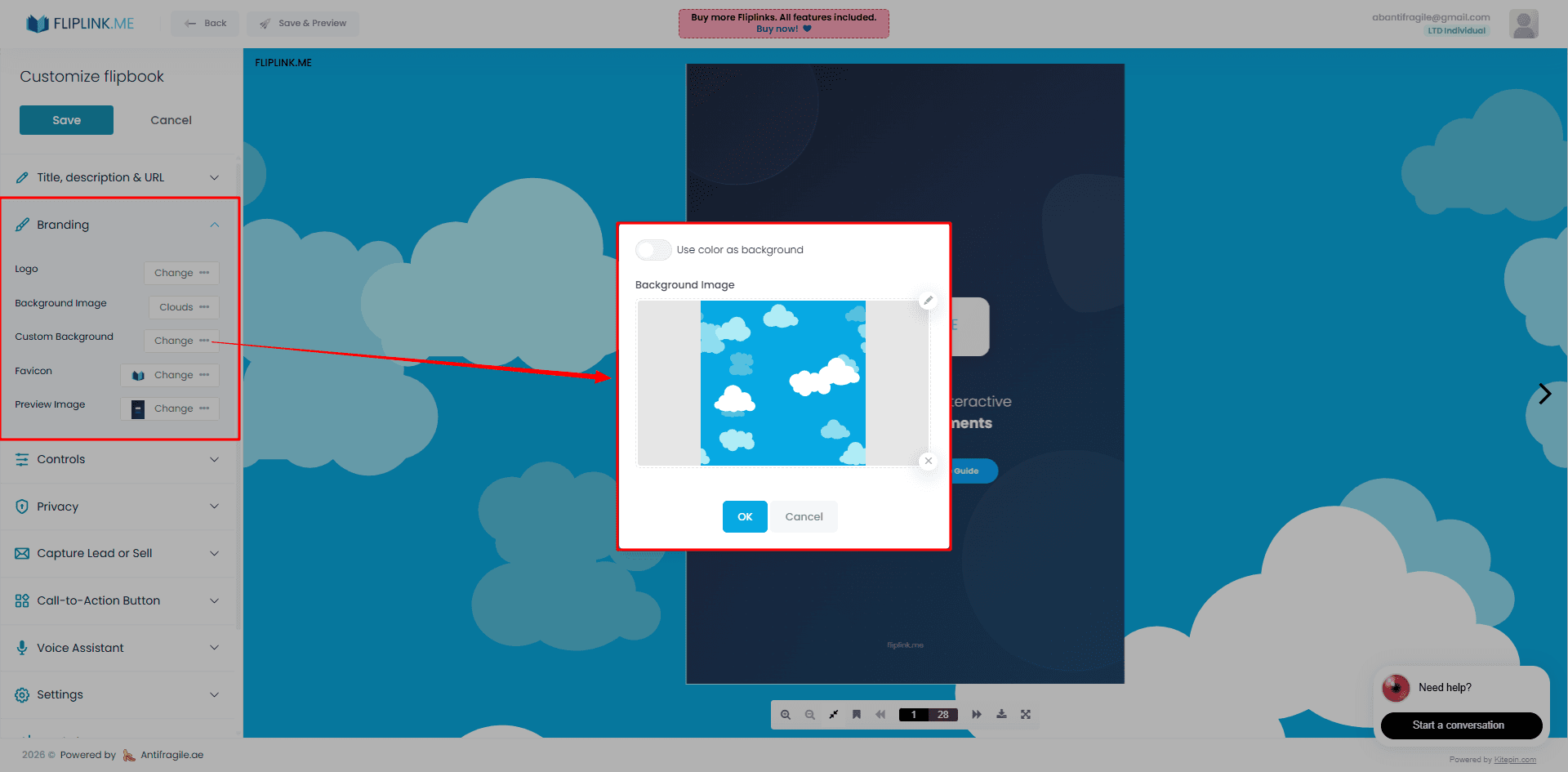
First impressions happen fast. When someone opens your flipbook, the background is one of the first things they notice — even before they start flipping pages. A plain, default background can make a polished PDF feel generic, while a custom background tied to your brand instantly signals professionalism.
Whether you're publishing a product catalog, a company lookbook, or an interactive portfolio, the background sets the visual tone for the entire reading experience. Think of it like choosing the right frame for a painting — it doesn't change the content, but it changes how people perceive it.
FlipLink makes it simple to swap out the default background for any image you want. In this tutorial, we'll walk through the entire process step by step.
What You'll Need Before You Start
Before uploading your custom background, make sure you have:
- A FlipLink account — sign up here if you don't have one yet
- An existing flipbook — upload a PDF and convert it to a flipbook first
- Your background image — a JPG, PNG, or WebP file (recommended minimum resolution: 1920x1080)
That's it. No design software required, no code to write.
Step-by-Step: Uploading a Custom Background
Step 1: Open Your Flipbook Settings
Log in to your FlipLink dashboard at go.fliplink.me. Find the flipbook you want to customize, and click into its settings panel. You'll see several tabs for controlling different aspects of your publication.
Step 2: Navigate to the Background Section
Look for the Branding & Design settings. This is where you control the visual wrapper around your flipbook — the background, colors, toolbar style, and more. For a full breakdown of all the design options available, check out the Branding and Design feature page.
Step 3: Upload Your Image
Click the background upload area and select your image file from your computer. FlipLink accepts JPG, PNG, and WebP formats. Once uploaded, you'll see a preview of how the background looks behind your flipbook.
Step 4: Adjust and Preview
After uploading, preview the flipbook in a new tab to see how the background looks at full size. Pay attention to how it appears on both desktop and mobile — a background that looks great on a wide monitor might crop differently on a phone screen.
Step 5: Save and Publish
Once you're happy with the result, save your changes. The new background goes live immediately for anyone viewing your flipbook via its shared link or embed.
Choosing the Right Background Image
Not all images work equally well as flipbook backgrounds. Here are some guidelines:
Do's
- Use subtle textures — linen, paper grain, or soft gradients work beautifully without competing with your content
- Match your brand palette — pick a background color or image that complements your logo and PDF design
- Keep it dark or muted — the flipbook itself is the star; the background should support, not distract
- Use high resolution — blurry backgrounds look unprofessional on large screens
Don'ts
- Avoid busy patterns — complex illustrations or photos with lots of detail will compete with the flipbook
- Skip text in backgrounds — any text in the background image will be partially hidden behind the flipbook viewer
- Don't use low-res images — anything under 1920x1080 will look pixelated on modern displays
Background Options Compared
Here's a quick comparison of the different background approaches you can take with FlipLink:
| Background Type | Best For | Effort | Brand Impact |
|---|---|---|---|
| Default (solid color) | Quick publications, internal docs | None | Low |
| Solid brand color | Consistent branding across all flipbooks | Minimal | Medium |
| Subtle texture/gradient | Catalogs, portfolios, lookbooks | Low | High |
| Custom branded image | Marketing materials, client-facing content | Medium | Very High |
| Matching page design | Premium publications, annual reports | Medium | Very High |
For most users, a subtle texture or branded gradient hits the sweet spot between effort and impact.
Free: Pdf To Flipbook
Turn your PDF into a beautiful 3D page-flipping flipbook.
Try it free — no sign-up neededPairing Your Background with Other Design Settings
A custom background is just one piece of the puzzle. FlipLink gives you several other controls that work together to create a cohesive branded experience:
- Toolbar styling — Customize the toolbar colors and layout to match your background. See Page Experience and Layout for details.
- Custom loading screen — Add a branded splash screen that displays while your flipbook loads, so the experience feels polished from the very first second. Learn more on the Custom Loading Screen feature page.
- Logo placement — Add your company logo to the flipbook viewer interface for extra brand reinforcement.
When all these elements align — background, toolbar, loading screen, logo — your flipbook stops looking like a generic PDF viewer and starts looking like a branded content experience.
Common Questions
What's the ideal image size for a flipbook background?
Aim for at least 1920x1080 pixels. This covers full HD screens without stretching or pixelation. If many of your readers use 4K monitors, consider going up to 3840x2160.
Can I use a different background for each flipbook?
Yes. Every flipbook in your FlipLink account has its own independent background setting. You can tailor each one to the content — a warm wood texture for a restaurant menu, a clean white gradient for a tech whitepaper, a bold brand color for a sales deck.
Does the background affect loading speed?
Minimally. FlipLink optimizes uploaded images automatically. That said, keeping your file under 2MB is a good practice to ensure fast load times, especially on mobile connections.
Can I use a video or animated background?
Currently, FlipLink supports static image backgrounds. For motion, consider using a subtle gradient or pattern that creates visual interest without requiring animation.
Does the background show on embedded flipbooks?
Yes. When you embed a flipbook on your website, the custom background is visible within the embed frame. This makes it a great way to blend the flipbook into your site's design.
Background Ideas by Use Case
Need some inspiration? Here are background suggestions based on common flipbook use cases:
Product catalogs — Use a clean white or light gray background with a subtle shadow effect. This keeps the focus on your products and mimics the feel of a physical catalog on a table. See more tips on the product catalogs use case page.
Real estate brochures — Try a soft aerial cityscape or a muted architectural texture. It sets the mood without pulling attention from property photos.
Corporate reports — A dark navy or charcoal gradient with your brand accent color works well. It feels executive and polished.
Educational materials — Light, warm tones like cream or soft yellow keep the reading experience comfortable for longer sessions.
Event programs — Match the event's visual identity. If it's a gala, go dark and elegant. If it's a conference, use the event's brand colors.
Quick Checklist Before Publishing
Before you share your flipbook with its new custom background, run through this list:
- Background image is at least 1920x1080
- Image file size is under 2MB for fast loading
- Background doesn't clash with your PDF page colors
- Toolbar and loading screen colors complement the background
- Flipbook looks good on both desktop and mobile preview
- All changes are saved
Start Customizing Your Flipbook
A custom background is one of the fastest ways to elevate a PDF flipbook from functional to impressive. It takes less than a minute to upload, and the difference in perceived quality is significant.
If you're not on FlipLink yet, create your free account and try uploading a custom background on your first flipbook. With the lifetime deal at just $39, you get full access to all branding and design features without recurring fees. Check the pricing page for details.
Your content deserves more than a default background. Make it yours.
Ready to Create Your First Flipbook?
Transform your PDFs into interactive flipbooks and documents. Get started with FlipLink's Lifetime Deal — lifetime access that starts at just $39.
Pay Once, Use Forever
10, 50 or 100 flipbooks · All 35 features · Unlimited domains
No feature gates. Every Lifetime Deal tier unlocks all 35 features.
- Every feature unlocked — no feature gates
- Stackable — buy more codes anytime
- Replaceable — swap old for new
- Unlimited custom domains (CNAME)
- No recurring fees, ever
Related Reading
10 Background Skins That Make Your Flipbook Stand Out
Explore 10 built-in background skins in FlipLink that transform the look of your flipbook and match your brand identity
How to Brand Your Flipbook with Custom Colors and Logo
Make your flipbooks look professional with custom branding. Learn how to add your logo, brand colors, and custom loading screens.
How to Add a Custom Favicon to Your Online Publication
Learn how to add a custom favicon to your FlipLink flipbook for stronger branding and a more professional appearance in browser tabs.