
10 Background Skins That Make Your Flipbook Stand Out
Explore 10 built-in background skins in FlipLink that transform the look of your flipbook and match your brand identity

Published on February 15, 2026 · 6 min read
Why Background Design Matters for Flipbooks
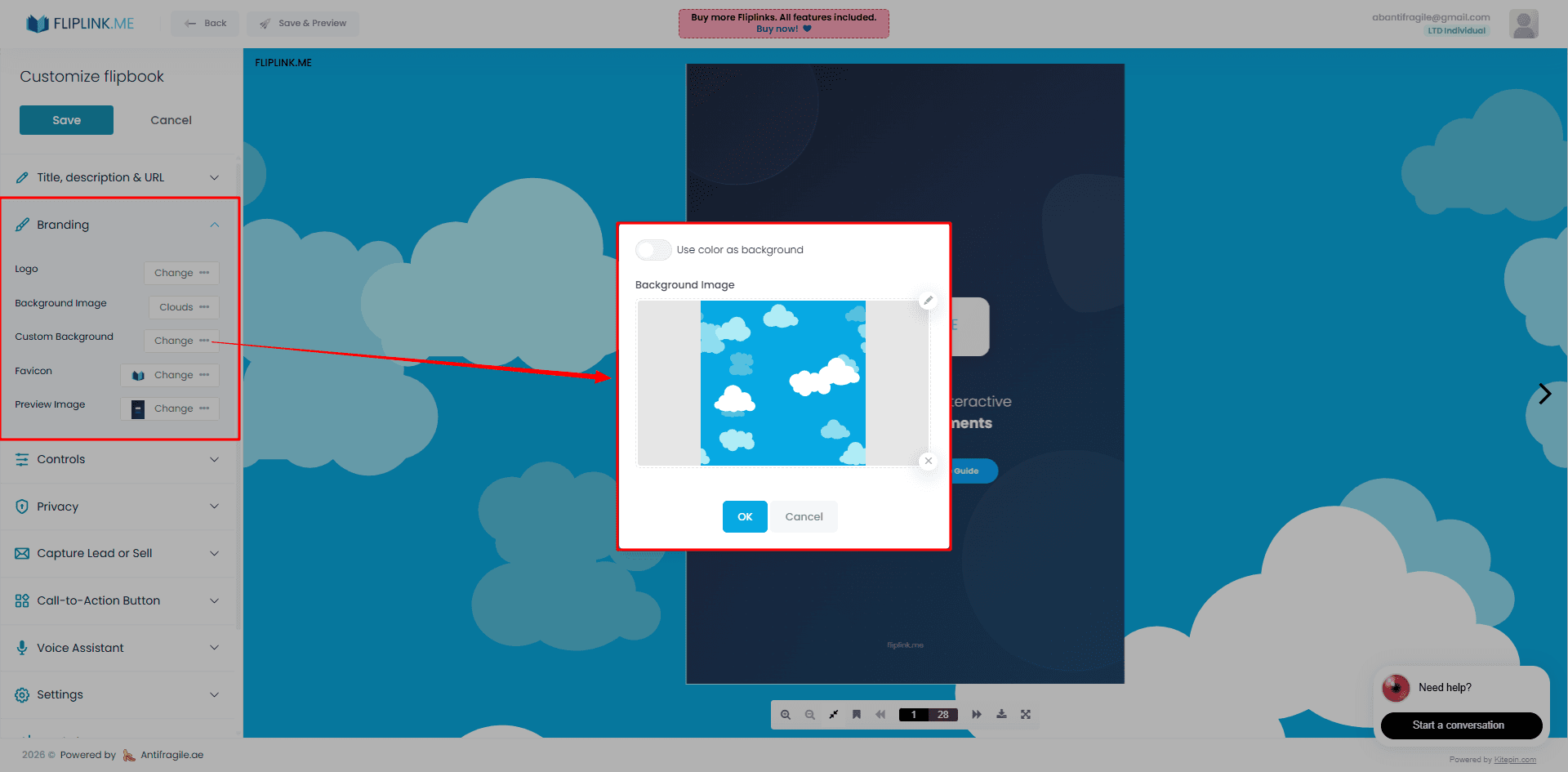
When someone opens your flipbook, the background is the first thing they notice — even before they start flipping pages. It sets the mood, reinforces your brand, and tells readers they're looking at something polished and intentional.
A plain white or dark background works fine for quick internal documents. But if you're publishing a digital magazine, a product catalog, or a marketing brochure, the background skin you choose can make the difference between "meh" and "wow."
Think of it like framing a painting. The content is the art, but the right frame elevates the entire presentation. FlipLink gives you 10 built-in background skins — plus the option to upload your own — so every flipbook feels on-brand from the moment it loads.
FlipLink's 10 Built-In Background Skins
Each skin is designed to complement different types of content and branding styles. Here's a closer look at all ten options available inside FlipLink.
1. Classic White
Clean, minimal, and distraction-free. Classic White puts all the focus on your content. It works well for professional documents, proposals, and anything where simplicity is the goal.
2. Dark Mode
A deep charcoal background that gives your flipbook a sleek, modern feel. Dark Mode reduces eye strain and makes colorful page content pop. Great for portfolios and tech-forward brands.
3. Soft Gradient
A subtle gradient that shifts between light tones. Soft Gradient adds visual depth without competing with your pages. It's a safe, versatile choice for most use cases.
4. Linen Texture
A warm, fabric-like texture that feels organic and tactile. Linen Texture works beautifully for lifestyle brands, wedding catalogs, and artisanal product showcases.
5. Wood Grain
Rich and natural, Wood Grain brings an earthy, grounded feel to your flipbook. It pairs well with food and beverage catalogs, outdoor brands, and rustic-themed publications.
6. Brushed Metal
A cool, industrial finish that feels polished and high-end. Brushed Metal is ideal for automotive brands, tech companies, and any content that benefits from a premium look.
7. Marble
Elegant veined marble that signals luxury. This skin is a strong fit for jewelry catalogs, real estate brochures, high-end fashion lookbooks, and event programs.
8. Blueprint
A technical grid pattern reminiscent of architectural blueprints. Blueprint adds character to engineering documents, construction catalogs, and educational materials.
9. Night Sky
A deep blue-black background with subtle star-like elements. Night Sky creates a dramatic, immersive atmosphere — perfect for event programs, travel magazines, and storytelling-focused content.
10. Corporate Blue
A professional blue tone that conveys trust and reliability. Corporate Blue is the go-to for business reports, investor decks, company newsletters, and B2B collateral.
Skin Comparison at a Glance
| Skin | Style | Best Use Case | Mood |
|---|---|---|---|
| Classic White | Minimal | Proposals, reports | Clean, professional |
| Dark Mode | Modern | Portfolios, tech brands | Sleek, bold |
| Soft Gradient | Versatile | General marketing | Warm, approachable |
| Linen Texture | Organic | Lifestyle, weddings | Tactile, cozy |
| Wood Grain | Natural | Food, outdoor brands | Earthy, grounded |
| Brushed Metal | Industrial | Auto, tech products | Premium, sharp |
| Marble | Luxury | Fashion, real estate | Elegant, refined |
| Blueprint | Technical | Engineering, education | Structured, nerdy |
| Night Sky | Dramatic | Events, travel | Immersive, atmospheric |
| Corporate Blue | Professional | B2B, investor reports | Trustworthy, stable |
Free: Pdf To Flipbook
Turn your PDF into a beautiful 3D page-flipping flipbook.
Try it free — no sign-up neededHow to Apply a Background Skin
Changing your flipbook's background takes just a few clicks inside FlipLink. Here's how:
- Open your flipbook in the FlipLink dashboard at go.fliplink.me.
- Go to Settings and find the "Appearance" or "Design" section.
- Browse the Background Skins gallery — you'll see all 10 options with live previews.
- Click the skin you want to apply it instantly.
- Preview your flipbook to make sure the skin complements your content.
- Save and publish. Your readers will see the new background immediately.
That's it. No code, no design tools, no CSS. Just pick and publish.
For even more control over your flipbook's visual identity, check out the full Branding and Design feature set, which includes logo placement, color accents, and toolbar customization.
Upload a Custom Background for Full Brand Control
The 10 built-in skins cover a wide range of styles, but sometimes your brand needs something specific. FlipLink lets you upload your own background image to use instead.
Here's how to set a custom background:
- Prepare your image. Use a high-resolution image (at least 1920x1080). Subtle patterns and textures work better than busy photos.
- Navigate to the Design section in your flipbook settings.
- Choose "Custom Background" instead of a built-in skin.
- Upload your image. FlipLink will tile or stretch it to fill the background area.
- Adjust and preview. Make sure your pages remain readable against the custom background.
- Save your changes.
Custom backgrounds are perfect for brands that have specific textures, patterns, or colors in their style guide. Combine a custom background with a custom loading screen and your flipbook becomes a fully branded experience from the first second.
Tips for Choosing the Right Background
Picking a background skin isn't just about what looks nice. Here are a few practical guidelines:
Match the mood to your content
A marble background for a kids' coloring book catalog would feel off. A night sky background for a corporate quarterly report might confuse readers. Let the content guide the vibe.
Consider your audience
B2B audiences generally expect cleaner, more subdued designs. Consumer-facing content has more room for personality and drama.
Don't compete with your pages
The background should frame your content, not fight with it. If your PDF pages are visually busy with lots of colors and images, choose a simpler skin like Classic White or Soft Gradient. Save the dramatic skins for pages with more whitespace.
Test on mobile
Many of your readers will view your flipbook on phones and tablets. Preview your chosen background on smaller screens to make sure it still looks good and doesn't create readability issues.
Stay consistent with your brand
If you're publishing multiple flipbooks, use the same background skin (or custom background) across all of them. Consistency builds recognition. The Page Experience and Layout settings in FlipLink make it easy to maintain a uniform look across publications.
Make Every Flipbook Feel Like Your Brand
Background skins are one of the easiest ways to level up your flipbook's presentation. Whether you pick a built-in option or upload your own branded texture, the right background turns a simple PDF conversion into a polished, professional experience.
FlipLink gives you 10 skins to choose from, plus custom upload support — all included with every plan. No design skills required.
Ready to make your flipbooks stand out? Create your free account and start customizing today. Or check out our pricing to see how FlipLink's lifetime deal gives you 100 active publications for a one-time payment.
Ready to Create Your First Flipbook?
Transform your PDFs into interactive flipbooks and documents. Get started with FlipLink's Lifetime Deal — lifetime access that starts at just $39.
Pay Once, Use Forever
10, 50 or 100 flipbooks · All 35 features · Unlimited domains
No feature gates. Every Lifetime Deal tier unlocks all 35 features.
- Every feature unlocked — no feature gates
- Stackable — buy more codes anytime
- Replaceable — swap old for new
- Unlimited custom domains (CNAME)
- No recurring fees, ever
Related Reading
How to Upload a Custom Background for Your Flipbook
Step-by-step guide to uploading and setting a custom background image for your FlipLink flipbook to match your brand identity.
How to Brand Your Flipbook with Custom Colors and Logo
Make your flipbooks look professional with custom branding. Learn how to add your logo, brand colors, and custom loading screens.
How to Add a Custom Favicon to Your Online Publication
Learn how to add a custom favicon to your FlipLink flipbook for stronger branding and a more professional appearance in browser tabs.