
Set Up Automated Emails When Someone Views Your Flipbook
Learn how to configure automatic email notifications in FlipLink so you know exactly when someone opens and reads your publication.

Published on March 9, 2026 · 7 min read
Why Flipbook View Notifications Matter
You just sent a sales proposal to a prospect. Hours pass. Did they open it? Did they read past the first page? Without view notifications, you're flying blind — guessing when to follow up and hoping your timing is right.
Automated email notifications solve this problem entirely. The moment someone opens your flipbook, you get an alert. You know who viewed it, when they viewed it, and you can respond while your content is still fresh in their mind.
This tutorial walks you through setting up automated email notifications in FlipLink so you never miss a viewer again.
What You'll Need Before Starting
Before diving into the setup, make sure you have:
- A FlipLink account (free to sign up)
- At least one published flipbook or document
- Access to your FlipLink dashboard notification settings
If you haven't published your first flipbook yet, upload any PDF to your dashboard and it converts automatically. Then come back here to set up notifications.
Step 1: Open Your Publication Settings
Log into your FlipLink dashboard at go.fliplink.me. Navigate to the flipbook or document you want to monitor, and open its settings panel.
Look for the Notifications tab. This is where all email alert configurations live. FlipLink's notification system gives you granular control over what triggers an email and who receives it.
Step 2: Enable View Notifications
Inside the Notifications tab, toggle on Email on View. This is the core setting that fires an email every time a unique visitor opens your publication.
Once enabled, you'll see several configuration options:
Notification Frequency Options
| Setting | What It Does | Best For |
|---|---|---|
| Every View | Sends an email for each unique view | Sales proposals, high-value documents |
| Daily Digest | Batches all views into one daily email | Marketing materials with high traffic |
| Weekly Summary | Weekly rollup of all view activity | Catalogs, general publications |
| Threshold Alert | Notifies when views hit a specific number | Launch campaigns, viral content |
Choose Every View if you're sending targeted content like sales proposals where immediate follow-up matters. Switch to Daily Digest for publications with higher traffic to avoid inbox overload.
Step 3: Customize Your Email Template
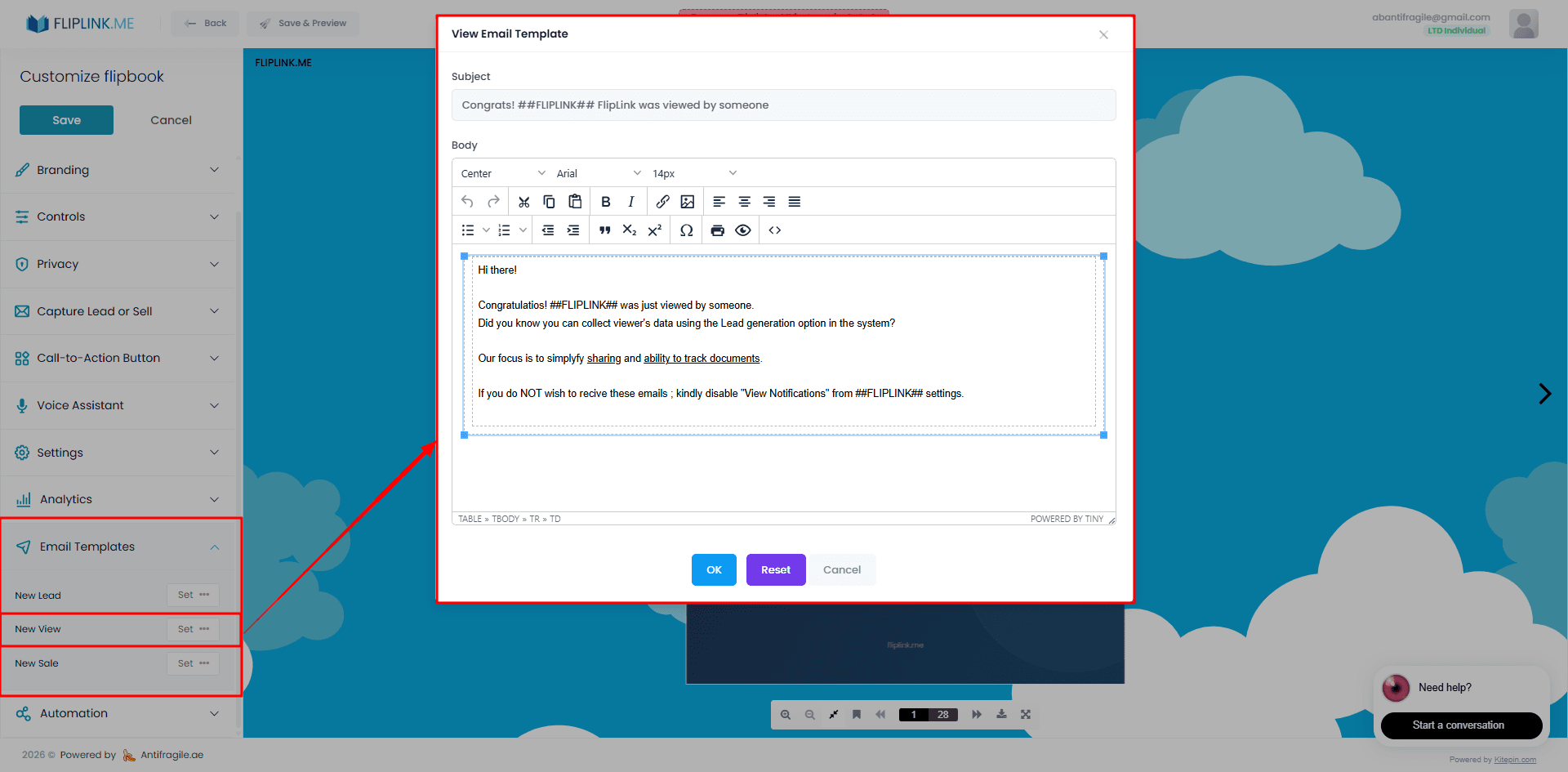
Generic notification emails get ignored. FlipLink lets you customize what your notification emails look like and what data they include through email templates.
Here's what you can configure:
- Subject line — Include dynamic variables like the viewer's name or the publication title
- Body content — Add your branding, custom messages, or next-step instructions
- Data fields — Choose which viewer details appear (location, device, time spent, pages viewed)
- Reply-to address — Route responses to the right team member
A good notification email subject might look like: "Sarah Chen just viewed your Q3 Pricing Proposal" — specific, actionable, and impossible to miss in a crowded inbox.
Free: Pdf To Flipbook
Turn your PDF into a beautiful 3D page-flipping flipbook.
Try it free — no sign-up neededStep 4: Set Up Automation Rules
For teams that want to go beyond simple notifications, FlipLink's automation and integrations let you trigger actions based on viewer behavior.
Example Automation Workflows
Sales follow-up flow:
- Prospect opens your proposal flipbook
- FlipLink sends you an instant notification
- If they spend more than 2 minutes viewing, trigger a webhook to your CRM
- Your CRM queues a follow-up task for the account owner
Lead nurture flow:
- Someone views your product catalog
- FlipLink captures their lead information
- Daily digest email summarizes all new leads
- Integration pushes leads to your Google Sheet or email platform
Content performance flow:
- Publication hits 100 views
- Threshold alert notifies your marketing team
- Team reviews analytics to identify top-performing pages
- Insights inform the next content update
Step 5: Test Your Notification Setup
Before relying on notifications for real prospects, test the entire flow:
- Open your published flipbook link in an incognito browser window
- Wait 30–60 seconds for the view to register
- Check your inbox for the notification email
- Verify the email contains the correct details (publication name, timestamp, viewer info)
If the email doesn't arrive, check your spam folder first. Then confirm your notification email address is correct in settings and that the toggle is active.
Comparing Notification Approaches
Not every publication needs the same notification strategy. Here's a quick comparison to help you decide:
| Use Case | Recommended Setting | Notification Type | Why |
|---|---|---|---|
| Sales proposals | Every View | Instant email | Timing is critical for follow-up |
| Product catalogs | Daily Digest | Batched email | Volume is high, patterns matter more |
| Training materials | Weekly Summary | Rollup email | Track adoption trends over time |
| Event programs | Threshold Alert | Milestone email | Know when engagement spikes |
| Client reports | Every View | Instant email | Shows responsiveness to clients |
Advanced Tips for Power Users
Combine Notifications with Analytics
Notifications tell you when someone viewed. FlipLink's analytics and insights tell you how they engaged. Use both together:
- Get notified instantly when a prospect opens your proposal
- Before following up, check analytics to see which pages they lingered on
- Reference specific sections in your follow-up email for a personalized touch
This one-two punch turns a cold follow-up into a warm, informed conversation.
Use Webhooks for Custom Workflows
If your team uses Slack, Microsoft Teams, or a custom CRM, webhooks let you push view notifications to any platform. Set up the webhook URL in your automation settings, and FlipLink sends a JSON payload with viewer details every time someone opens your publication.
Segment Notifications by Publication
Not every flipbook deserves the same urgency. Set high-priority notifications (instant email + webhook) for sales-critical documents, and lower-frequency digests for general marketing content. This keeps your inbox manageable while ensuring you never miss a hot lead.
Common Issues and Fixes
Notifications arriving late? Check your email provider. Some services batch incoming messages. FlipLink sends notifications within seconds of a view event — delays are usually on the receiving end.
Too many notifications? Switch from "Every View" to "Daily Digest" for high-traffic publications. You can also set quiet hours to avoid middle-of-the-night alerts.
Missing viewer details? If your publication doesn't use lead capture, viewer data will be limited to anonymous metadata (device, location, timestamp). Enable lead capture on sensitive publications to get full contact details.
Notifications not sending at all? Confirm the feature is toggled on, your email address is verified, and you haven't hit any email sending limits. Contact support if issues persist.
Start Getting Notified Today
Setting up automated view notifications takes less than five minutes, but the impact on your workflow is immediate. You'll follow up faster, close deals sooner, and finally have visibility into how your content performs in the real world.
FlipLink's lifetime deal gives you access to notifications, analytics, automation, and everything else for a one-time payment from $39 — no monthly fees, no surprises. Check the pricing page for full details.
Create your free FlipLink account and set up your first view notification in minutes. Your next follow-up will be perfectly timed.
Ready to Create Your First Flipbook?
Transform your PDFs into interactive flipbooks and documents. Get started with FlipLink's Lifetime Deal — lifetime access that starts at just $39.
Pay Once, Use Forever
10, 50 or 100 flipbooks · All 35 features · Unlimited domains
No feature gates. Every Lifetime Deal tier unlocks all 35 features.
- Every feature unlocked — no feature gates
- Stackable — buy more codes anytime
- Replaceable — swap old for new
- Unlimited custom domains (CNAME)
- No recurring fees, ever
Related Reading
Why Your Sales Team Needs to Stop Sending PDF Attachments
PDF attachments get lost, ignored, and never tracked. Here's why smart sales teams are switching to trackable flipbook links instead.
Set Up Real-Time Notifications for Flipbook Activity
Configure real-time notifications in FlipLink to stay updated on views, leads, sales, and other activity on your digital publications.
Automate Flipbook Publishing in CI/CD with the FlipLink CLI
Automate flipbook publishing in any CI/CD pipeline with the FlipLink CLI — create, publish, capture the URL, and fail fast on exit codes.