
Set Up Real-Time Notifications for Flipbook Activity
Configure real-time notifications in FlipLink to stay updated on views, leads, sales, and other activity on your digital publications.

Published on February 1, 2026 · 7 min read
Why You Need a Flipbook Notification System
You just sent a sales proposal to a prospect. An hour later, they open it, flip through every page, and linger on the pricing section. Wouldn't you want to know that the moment it happens?
Without real-time notifications, you're flying blind. You publish a flipbook, share the link, and then... wait. Maybe you check your dashboard a day later. By then, the moment to follow up has passed.
A flipbook notification system changes the game. Instead of checking dashboards obsessively, you get instant alerts when something important happens — a new view, a lead captured, a document downloaded, or a sale completed. You respond faster, close deals sooner, and never miss a hot prospect.
FlipLink's notification system lets you configure exactly what triggers an alert, how you receive it, and who on your team gets notified. This tutorial walks you through setting it all up.
What Triggers Notifications in FlipLink
Before diving into configuration, here's what you can monitor. FlipLink tracks activity across your entire publication library and lets you choose which events matter to you.
Available Notification Events
| Event Type | What It Means | Best For |
|---|---|---|
| New View | Someone opened your flipbook or document | Tracking reach and engagement |
| Lead Captured | A viewer submitted their email or contact info | Sales follow-ups |
| Sale Completed | A viewer purchased your gated document | Revenue tracking |
| Download | A viewer downloaded the PDF (if enabled) | Content distribution metrics |
| Link Click | A viewer clicked an embedded link | Measuring CTA performance |
| Milestone Views | Your publication hit a view count threshold | Campaign performance |
| Expiration Warning | A time-limited publication is about to expire | Content management |
You don't need to enable all of them. Most users start with new views and lead captures, then expand from there.
Step-by-Step Setup
Step 1: Open Your Publication Settings
Log into your FlipLink dashboard at go.fliplink.me. Navigate to the flipbook or document you want to monitor and open its settings panel.
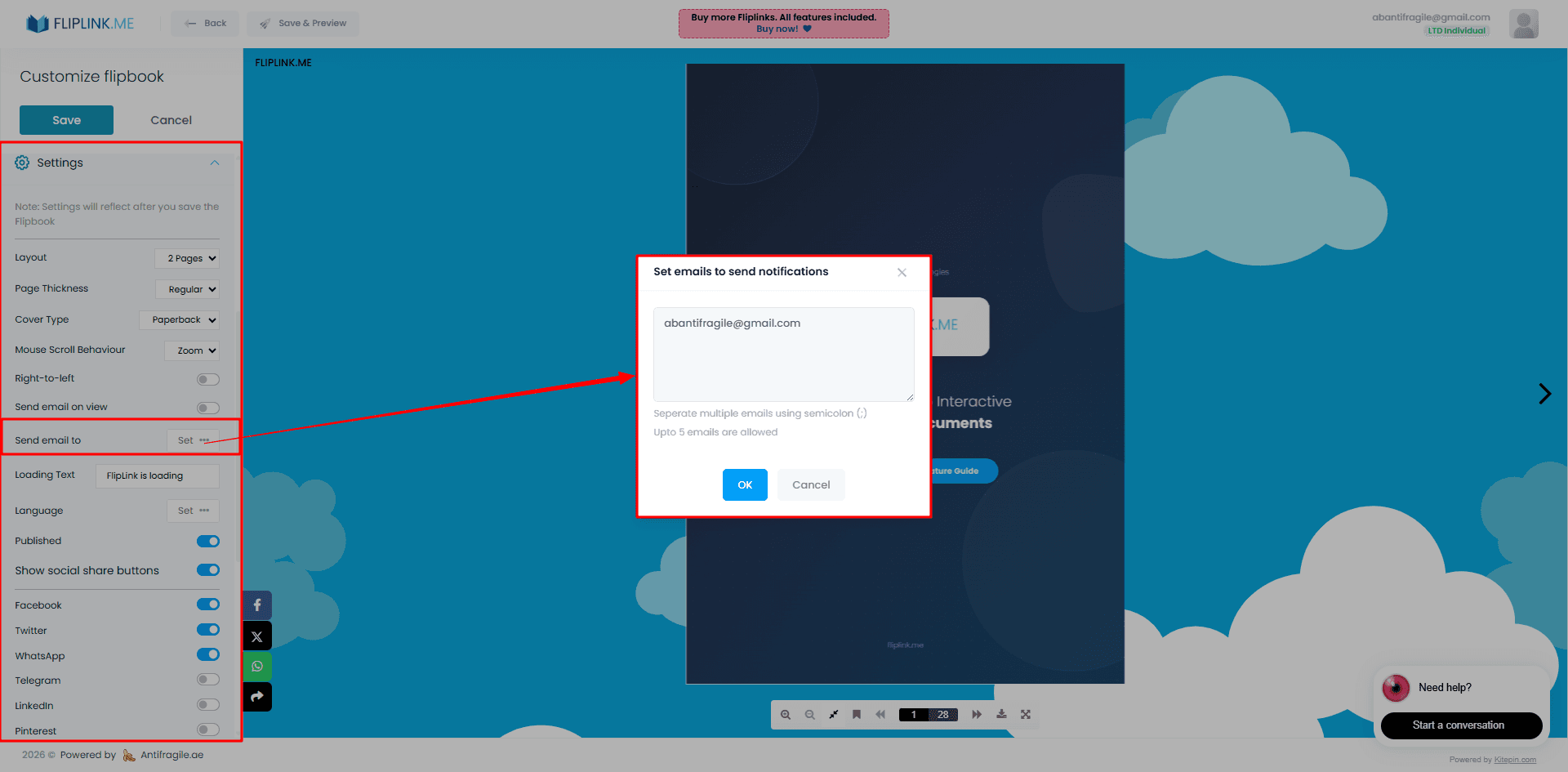
Click the Notifications tab. If this is your first time here, all notifications will be off by default.
Step 2: Choose Your Notification Events
Toggle on the events you care about. For a sales proposal, you'd typically enable:
- New View — know the instant your prospect opens the proposal
- Lead Captured — if you're using lead capture as a gate
- Link Click — track whether they clicked your pricing or contract links
- Page Dwell Time Alert — get notified if someone spends significant time on a specific page
Each toggle shows a brief description so you know exactly what you're enabling.
Step 3: Configure Delivery Channels
FlipLink supports multiple notification channels. You can use one or combine several:
Email Notifications — The default channel. Alerts land in your inbox with a summary of the activity, including viewer location, device type, and which pages they viewed. You can customize the email format using FlipLink's email templates.
Dashboard Alerts — A notification bell in your FlipLink dashboard shows a real-time feed of all activity. Useful if you keep the dashboard open during work hours.
Webhook Integration — For teams that use Slack, Zapier, or custom CRM integrations. Point a webhook URL at your preferred tool, and FlipLink pushes event data in JSON format every time a trigger fires.
Step 4: Set Notification Frequency
Not every event needs an immediate ping. FlipLink lets you choose how often you receive alerts:
| Frequency | How It Works | Best For |
|---|---|---|
| Instant | One notification per event, sent immediately | High-value proposals, limited audiences |
| Hourly Digest | Batched summary every hour | Active publications with moderate traffic |
| Daily Digest | One email per day with all activity | High-traffic publications, newsletters |
| Weekly Summary | End-of-week recap | Long-running publications, evergreen content |
For sales content, use Instant. For a marketing brochure shared on social media, a Daily Digest keeps your inbox manageable.
Step 5: Add Team Members
If you work with a sales or marketing team, you can add multiple notification recipients. Each team member can have different notification preferences — your sales rep gets instant alerts on lead captures, while your marketing manager receives a weekly summary of overall engagement.
Go to Settings > Team Notifications and add email addresses for each recipient. Assign them specific event types so nobody gets overwhelmed with irrelevant alerts.
Combining Notifications with Analytics
Notifications tell you when something happens. Analytics and insights tell you what happened in detail.
Here's how they work together:
- You receive a notification that a prospect viewed your proposal
- You open the analytics dashboard to see exactly which pages they read
- You notice they spent three minutes on the pricing page and skipped the appendix
- You craft a follow-up email that addresses pricing directly
This workflow turns passive content sharing into an active sales tool. Instead of a generic "just checking in" follow-up, you send a targeted message based on real behavior.
Free: Pdf To Flipbook
Turn your PDF into a beautiful 3D page-flipping flipbook.
Try it free — no sign-up neededPro Tips for Notification Configuration
Start narrow, expand later. Enable only the two or three events that matter most for your use case. You can always add more later. Too many notifications at once leads to alert fatigue, and you start ignoring them.
Use webhooks for automation. Connect FlipLink notifications to your CRM via Zapier or a direct webhook. When a lead is captured, automatically create a contact record and assign a follow-up task. No manual data entry required.
Set quiet hours. If your audience is global, you might get views at 3 AM. Configure notification delivery windows so you're not woken up by non-urgent alerts. Instant notifications can be restricted to business hours, with off-hours activity batched into a morning digest.
Create publication-specific rules. A high-stakes sales proposal deserves instant notifications. A general marketing brochure does not. Tailor your notification settings per publication rather than using a blanket configuration.
Review and prune monthly. As publications age, their notification value decreases. Disable notifications on older content to keep your alert stream relevant and focused on active campaigns.
Common Use Cases for Real-Time Alerts
Sales teams use instant view notifications to time follow-ups perfectly. When a prospect opens a proposal, the sales rep gets an alert and can call within minutes while the content is fresh.
Educators use milestone notifications to track course material engagement. When a study guide hits 100 views, they know the cohort is actively preparing for exams.
Marketing teams use daily digests to monitor campaign performance. A product brochure shared via email campaign generates a stream of views — the digest summarizes engagement without flooding inboxes.
Publishers selling gated content use sale notifications to track revenue in real time and trigger fulfillment workflows.
Troubleshooting Notification Issues
Not receiving email notifications? Check your spam folder first. Then verify your email address in FlipLink settings. Some corporate email filters block automated emails — whitelist notifications from FlipLink's sending domain.
Too many notifications? Switch from Instant to Hourly or Daily Digest. Alternatively, narrow your event triggers to only the most critical ones.
Webhook not firing? Verify the URL is correct and that your receiving service is returning a 200 status code. FlipLink retries failed webhooks three times before marking them as failed. Check the webhook log in your dashboard for error details.
Team members not getting alerts? Confirm their email addresses are correct and that they've been assigned the right event types. Each recipient must be explicitly mapped to notification events.
Get Started with FlipLink Notifications
A flipbook notification system turns your static publications into live, responsive content channels. Instead of wondering whether anyone read your proposal, brochure, or catalog, you know the moment it happens — and you can act on it.
FlipLink's lifetime deal gives you everything you need: real-time notifications, detailed analytics, lead capture, email templates, and more — all for a one-time payment from $39 per code.
Create your free FlipLink account and start configuring notifications on your first flipbook today. Already have an account? Check out our pricing page to unlock the full notification system with a lifetime deal.
Ready to Create Your First Flipbook?
Transform your PDFs into interactive flipbooks and documents. Get started with FlipLink's Lifetime Deal — lifetime access that starts at just $39.
Pay Once, Use Forever
10, 50 or 100 flipbooks · All 35 features · Unlimited domains
No feature gates. Every Lifetime Deal tier unlocks all 35 features.
- Every feature unlocked — no feature gates
- Stackable — buy more codes anytime
- Replaceable — swap old for new
- Unlimited custom domains (CNAME)
- No recurring fees, ever
Related Reading
Set Up Automated Emails When Someone Views Your Flipbook
Learn how to configure automatic email notifications in FlipLink so you know exactly when someone opens and reads your publication.
How to Track PDF Engagement and Reader Analytics
Stop guessing whether people read your PDFs. Learn how to track views, time on page, and reader behavior with FlipLink analytics.
Why Your Sales Team Needs to Stop Sending PDF Attachments
PDF attachments get lost, ignored, and never tracked. Here's why smart sales teams are switching to trackable flipbook links instead.