
OTP Email Verification for Flipbook Leads
Enable OTP email verification on your FlipLink lead forms to filter out fake emails and capture only real, verified leads

Published on February 8, 2026 · 8 min read
You spent hours creating a beautiful flipbook from your PDF. You turned on lead capture so readers fill out a form before viewing it. The leads start rolling in—and then you notice half the email addresses look like asdf@fake.com or test123@throwaway.net.
Sound familiar? Fake and disposable email addresses are one of the biggest headaches for anyone gating content behind a lead form. They pollute your CRM, tank your email deliverability, and waste your follow-up efforts on people who never intended to engage.
The fix is simple: OTP email verification. FlipLink lets you require readers to verify their email with a one-time password before they can access your flipbook. In this tutorial, we'll walk through exactly how to set it up, when to use it, and how it fits into your broader lead capture strategy.
What Is OTP Email Verification?
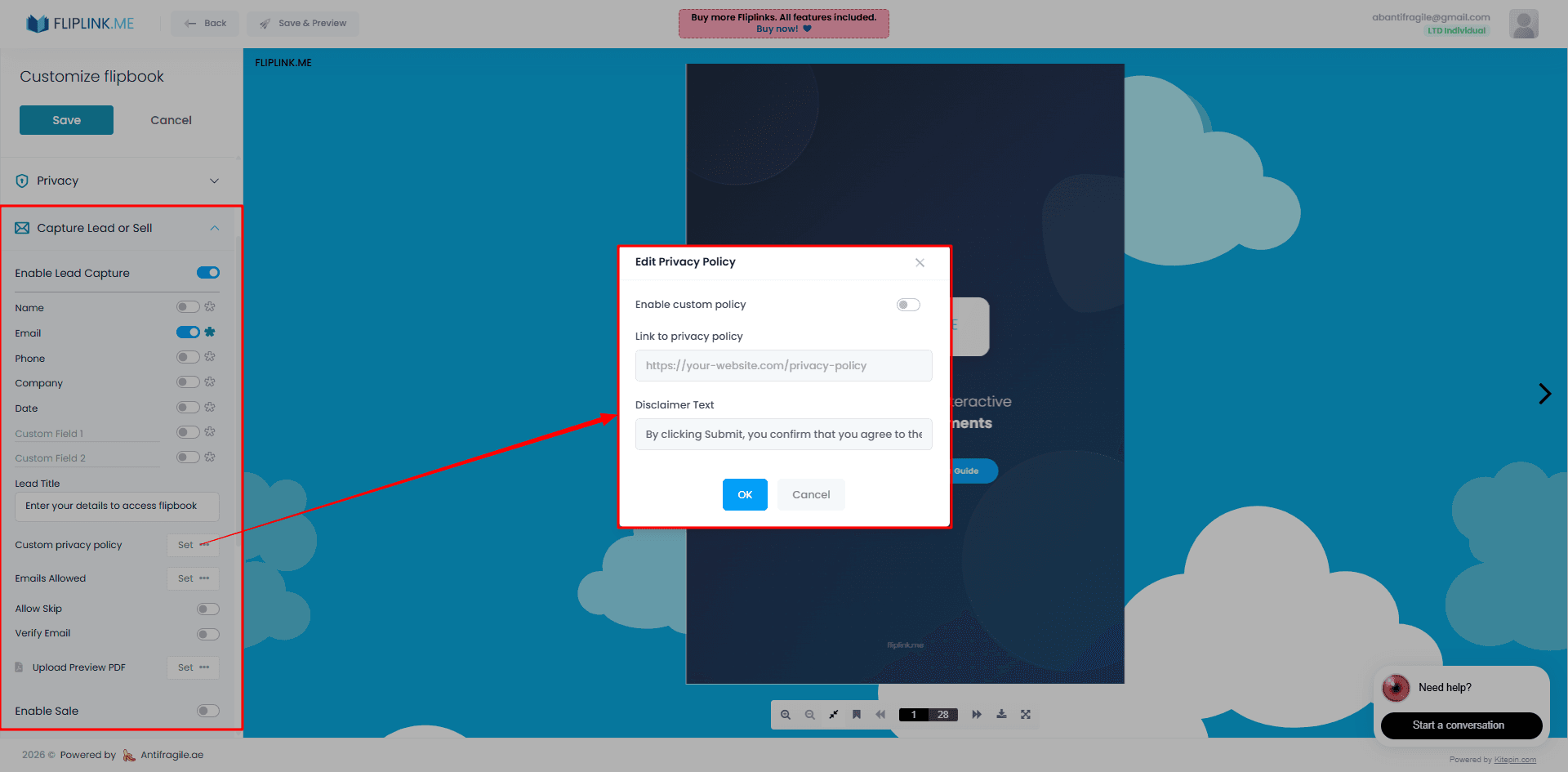
OTP stands for One-Time Password. When you enable OTP verification on your FlipLink lead form, here's what happens:
- A reader lands on your flipbook and sees the lead capture form
- They enter their name and email address
- FlipLink sends a short numeric code to that email address
- The reader checks their inbox, copies the code, and enters it back into the form
- Once verified, the flipbook loads
It's a lightweight but powerful filter. If someone types a fake email, they never receive the code—and they never get access. Only readers with real, working inboxes make it through.
This is the same verification method used by banks, SaaS platforms, and e-commerce sites. Your readers are already familiar with it, so the friction is minimal.
The Problem with Unverified Leads
Before we set things up, let's look at why unverified leads cause real damage:
- Wasted sales outreach — Your team spends time emailing addresses that bounce or never respond
- Lower email deliverability — Sending to invalid addresses increases your bounce rate, which hurts your sender reputation
- Inflated metrics — Your lead count looks healthy, but conversion rates tell a different story
- Dirty CRM data — Fake entries clog up your lead management pipeline and make segmentation unreliable
- Lost trust in gated content — If leadership sees low conversion from "leads," they may question whether gating content works at all
OTP verification solves all of these by ensuring every email in your system belongs to a real person who actively wanted access to your content.
Step-by-Step: Enabling OTP Verification in FlipLink
Setting up OTP verification takes about two minutes. Here's how:
Step 1: Open Your Flipbook Settings
Log in to your FlipLink dashboard at go.fliplink.me and open the flipbook you want to protect. Navigate to the Lead Capture settings panel.
Step 2: Enable Lead Capture
If you haven't already, toggle lead capture on. This activates the form that appears before your flipbook loads. You can customize which fields to collect—name, email, company, phone number, and more.
Step 3: Turn On OTP Email Verification
Inside the lead capture settings, you'll find the OTP Email Verification toggle. Switch it on. That's it.
FlipLink handles the rest automatically: generating the code, sending the verification email, and validating the response. You don't need to configure any email provider or write any code.
Step 4: Customize the Verification Email (Optional)
FlipLink uses your email templates for the OTP message. You can customize the subject line, body text, and branding to match your company's look and feel. A branded verification email builds trust and reduces the chance that readers ignore it.
Step 5: Test the Flow
Open your flipbook's share link in an incognito window. Fill out the form with your own email, receive the OTP, and verify. Confirm the experience is smooth before sharing the link with your audience.
With OTP vs. Without OTP
Here's a side-by-side comparison of what changes when you enable OTP verification:
| Factor | Without OTP | With OTP |
|---|---|---|
| Lead quality | Mixed—includes fake and disposable emails | High—every email is verified |
| Bounce rate on follow-up emails | Higher due to fake/invalid entries | Minimal — every email is verified |
| Spam/bot submissions | Common, especially on public links | Nearly eliminated |
| User friction | Low (one form submission) | Slightly higher (form + code entry) |
| CRM data cleanliness | Requires manual cleanup | Clean from the start |
| Conversion to reply/meeting | Lower due to invalid contacts | Higher—every lead is reachable |
| Setup effort | None | One toggle in settings |
The trade-off is a small amount of added friction. But for most B2B use cases—sales proposals, marketing reports, investor decks—the quality improvement far outweighs the slight drop in form completions.
Free: Pdf To Flipbook
Turn your PDF into a beautiful 3D page-flipping flipbook.
Try it free — no sign-up neededHow the Verification Flow Looks for Readers
Your readers see a clean, branded experience:
- The lead form appears over your flipbook with a blurred or hidden preview behind it
- They fill in their details and click submit
- A verification screen appears asking them to check their inbox for a code
- They enter the code (usually 4-6 digits) into the input field
- The flipbook loads instantly once the code is confirmed
The entire process takes 30-60 seconds for most readers. Because the flipbook preview is visible behind the form, readers stay motivated to complete the verification—they can see exactly what they're about to access.
If a reader doesn't receive the code, they can request a resend. FlipLink handles retry logic automatically.
When to Use OTP (and When to Skip It)
OTP verification isn't the right choice for every flipbook. Here's a quick guide:
Use OTP when:
- You're capturing leads for sales follow-up and need every email to be valid
- The flipbook contains premium content (pricing guides, research reports, whitepapers)
- You're running paid campaigns and paying per click—you can't afford fake leads eating your budget
- The flipbook is shared on public channels (social media, forums) where bot traffic is higher
- You need clean data for integrations—syncing leads to Google Sheets, CRMs, or email tools
Skip OTP when:
- The flipbook is a casual content piece (lookbook, portfolio) where high volume matters more than lead quality
- Your audience has low technical comfort and the extra step might cause abandonment
- You're doing internal distribution within your company (use password protection instead)
- The content is top-of-funnel and you plan to qualify leads later through email nurture sequences
A good rule of thumb: if you're planning to email or call the leads directly, turn OTP on. If the lead form is mostly for analytics and audience insight, you can leave it off.
Combining OTP with Other Lead Capture Settings
OTP verification works best as part of a broader lead capture strategy. Here are a few combinations worth trying:
OTP + Custom Fields
Add fields like company name, job title, or phone number alongside OTP verification. Since readers have already proven their email is real, they're more likely to fill in additional fields accurately too.
OTP + Download Restrictions
Gate your flipbook with OTP and also disable the download button. This ensures readers must verify to view—and can't simply grab the PDF and bypass your funnel.
OTP + Google Sheets Sync
Connect your lead capture to Google Sheets so verified leads flow directly into your spreadsheet in real time. Every row in that sheet represents a confirmed, reachable contact. You can learn more about managing your pipeline in lead management.
OTP + Email Templates
Customize both the OTP verification email and the follow-up confirmation email readers receive after accessing your flipbook. Consistent branding across these touchpoints increases trust and engagement. Set this up in your email templates settings.
Tips for Maximizing Verified Lead Conversion
Once OTP is live, a few small tweaks can improve your results:
- Keep the form short — Name and email are usually enough. Every extra field adds friction on top of the OTP step
- Use a compelling flipbook title — Readers decide whether the verification is "worth it" based on what they see. Make the value obvious
- Add a one-line value prop above the form — Something like "Get instant access to our complete pricing guide" tells readers exactly what they'll unlock
- Share the link in context — A flipbook link in a personalized email converts better than a cold link on social media, especially with OTP enabled
- Monitor your lead data — Export leads as CSV or check your Google Sheets integration regularly. If completion rates drop, consider whether OTP is appropriate for that specific flipbook
Start Capturing Verified Leads
Fake emails waste everyone's time. OTP email verification is one toggle in FlipLink, but it transforms the quality of every lead you capture. Your CRM stays clean, your follow-up emails actually reach real people, and your content gating strategy delivers measurable ROI.
Ready to start collecting higher-quality leads from your flipbooks?
Create your free FlipLink account and enable OTP verification on your first flipbook in minutes. Already have an account? Head to your dashboard and turn it on for any existing flipbook.
Need to compare plans? Check out our pricing page to find the right fit for your team.
Ready to Create Your First Flipbook?
Transform your PDFs into interactive flipbooks and documents. Get started with FlipLink's Lifetime Deal — lifetime access that starts at just $39.
Pay Once, Use Forever
10, 50 or 100 flipbooks · All 35 features · Unlimited domains
No feature gates. Every Lifetime Deal tier unlocks all 35 features.
- Every feature unlocked — no feature gates
- Stackable — buy more codes anytime
- Replaceable — swap old for new
- Unlimited custom domains (CNAME)
- No recurring fees, ever
Related Reading
Gate Content: Flipbook Lead Capture Guide
Learn how to gate your whitepapers, reports, and guides behind a lead form to turn content into a lead generation machine
Getting Started with the FlipLink CLI
Install the FlipLink CLI, authenticate, and turn a PDF into a published, shareable flipbook from your terminal in a few commands.
How to Create a Lead Magnet: A Step-by-Step Guide
A practical step-by-step guide to creating a lead magnet that converts — pick the topic, build the asset, gate it behind an email form, and capture every lead.