
How to Sell PDFs Online with Stripe
Monetize your PDFs by selling them as flipbooks. Set up Stripe payments, paywalls, and accept 135+ currencies with FlipLink.

Published on March 9, 2026 · 8 min read
Why Sell PDFs as Flipbooks Instead of Downloads?
Sending someone a raw PDF download is the fastest way to lose control of your content. Once that file hits their hard drive, it gets forwarded, uploaded, and shared without your permission — and you earn nothing from the copies.
Selling PDFs through FlipLink solves this entirely. Instead of a downloadable file, your buyers get access to an interactive flipbook or scrollable document hosted on your own domain. Here is why that matters:
- Built-in DRM — No download button means no unauthorized redistribution. Readers view your content in the browser, never on their local machine.
- Higher perceived value — A 3D page-flip flipbook feels like a premium product compared to a flat PDF sitting in a downloads folder.
- Real-time analytics — Track exactly who bought, which pages they read, how long they stayed, and where they dropped off. Try getting that from a PDF attachment.
- Instant delivery — Buyers pay and get immediate access. No email delivery delays, no broken download links, no support tickets.
- Global reach — Accept payments in 135+ currencies through Stripe. Sell to anyone, anywhere.
If you are creating ebooks, industry reports, educational materials, templates, or any content worth paying for, turning it into a flipbook or document is the smarter way to sell. You keep full control, earn more per sale, and deliver a better experience than any PDF download link ever could.
What You Need Before Starting
Before you set up your first paid publication, make sure you have these four things ready:
- A FlipLink account — Sign up here if you have not already. The Lifetime Deal from $39.
- A Stripe account — FlipLink uses Stripe to handle payments. If you do not have one, create a free account at stripe.com. Stripe is available in 46+ countries.
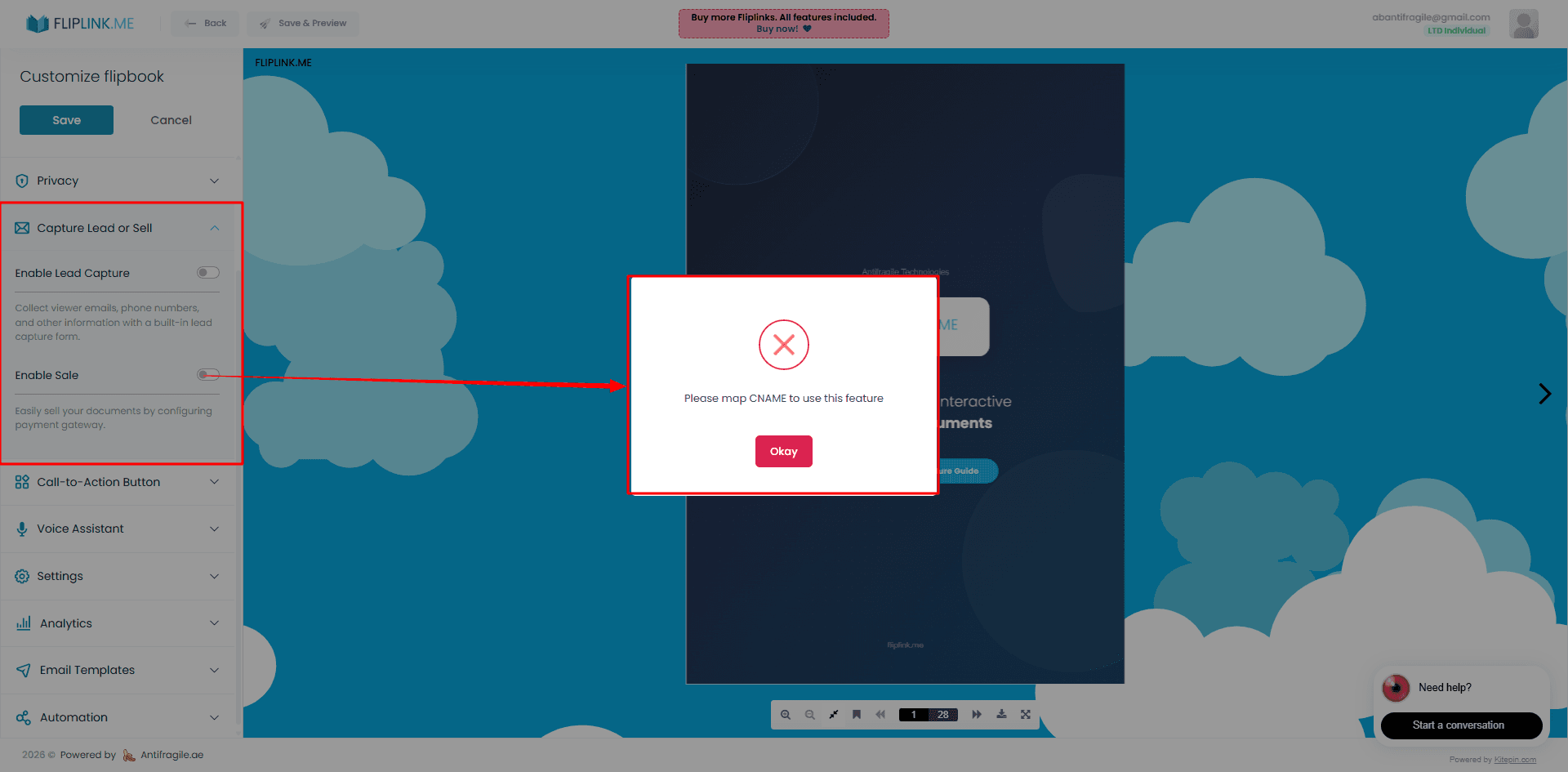
- A custom domain with CNAME — Sale mode requires your publications to be served from your own domain. You will need a domain you own and the ability to add a CNAME DNS record. See the Custom Domains feature guide for setup instructions.
- Your PDF — The content you want to sell. FlipLink supports PDFs up to 150 MB.
Step-by-Step: Set Up Paid PDF Publications
Step 1: Configure Your Custom Domain (CNAME)
Sale mode requires a CNAME — this is non-negotiable. Your buyers will access the content on your branded domain (e.g., books.yourbrand.com) rather than a generic FlipLink URL.
Go to your FlipLink dashboard, navigate to Settings > Custom Domains, and add your domain. You will need to create a CNAME record with your DNS provider pointing to FlipLink's servers. Full instructions are in the Custom Domains guide.
There is no limit on how many custom domains you can add. Use different domains for different product lines if you want.
Step 2: Connect Your Stripe Account
In your FlipLink dashboard, go to Settings > Payments and click Connect Stripe. This opens a secure Stripe Connect flow where you authorize FlipLink to process payments on your behalf.
Once connected, payments from buyers go directly to your Stripe account. FlipLink never holds your money.
Step 3: Create Your Flipbook or Document
Upload your PDF and choose your publication type:
- Flipbook — Best for visual content like catalogs, magazines, photo books, and marketing materials. Features 3D page-flip animations powered by WebGL.
- Document — Best for text-heavy content like ebooks, reports, manuals, and courses. Features smooth scrolling with text search.
Remember: this choice is permanent. A flipbook stays a flipbook, and a document stays a document.
Step 4: Enable Sale Mode and Set Your Price
Open your publication settings and switch to Sale mode. This locks the content behind a Stripe-powered paywall. You will be prompted to:
- Set your price (any amount you choose)
- Select your currency from 135+ options supported by Stripe
- Optionally add a preview — let buyers see the first few pages before purchasing
Once Sale mode is active, visitors see a preview of your publication with a prominent payment button. No payment, no access.
Step 5: Publish and Share
Hit Publish and your paid publication goes live on your custom domain. Share it everywhere:
- Direct link via email, social media, or messaging apps
- Embed code for your website or landing page
- QR code for print materials, business cards, or event handouts
Every link points to your branded domain, building trust with buyers.
Pricing Strategies That Work
Setting the right price depends on your content and audience. Here are three approaches that work well:
One-Time Purchase
The simplest model. Set a fixed price and buyers get permanent access to the publication. Works well for ebooks priced between $9 and $49, industry reports at $29 to $199, and premium templates. This is the most common approach and the easiest to set up — one price, one publication, one link to share.
Tiered Content
Create multiple publications at different price points. Offer a free flipbook as a teaser, then upsell to the full paid version. For example, publish the first chapter free and sell the complete book separately.
Content Bundles
Group related publications together. Sell individual reports at $29 each, or offer the complete bundle of five for $99. Each publication has its own payment link, so you can promote them individually or as a set.
Try FlipLink Free
Convert your PDF in seconds. No sign-up, no credit card — just upload and go.
Drop your PDF here or click to browse
Max 40MB
Paid plans from $39 raise this to 150 MB.
What Your Buyers Experience
The purchase flow is clean and distraction-free:
- Buyer lands on your custom domain — They see your branded page with a preview of the content
- They see what they are getting — A few preview pages give them confidence in the purchase
- They click "Buy" and pay via Stripe — Secure checkout supporting cards, Apple Pay, Google Pay, and 135+ currencies
- Instant access — The paywall drops immediately and they can read the full publication right in their browser
No accounts to create. No files to download. No waiting for email delivery. The entire flow takes under 60 seconds from click to reading.
This frictionless experience means higher conversion rates compared to traditional PDF storefronts that force buyers to create accounts, verify emails, and dig through inboxes for download links.
Track Your Sales and Reader Engagement
Every paid publication comes with detailed analytics through the Analytics & Insights dashboard. You can monitor:
- Revenue tracking — Total sales, revenue by publication, and payment history
- Reader behavior — Pages viewed, time spent per page, and completion rates
- Geographic data — Where your buyers are located
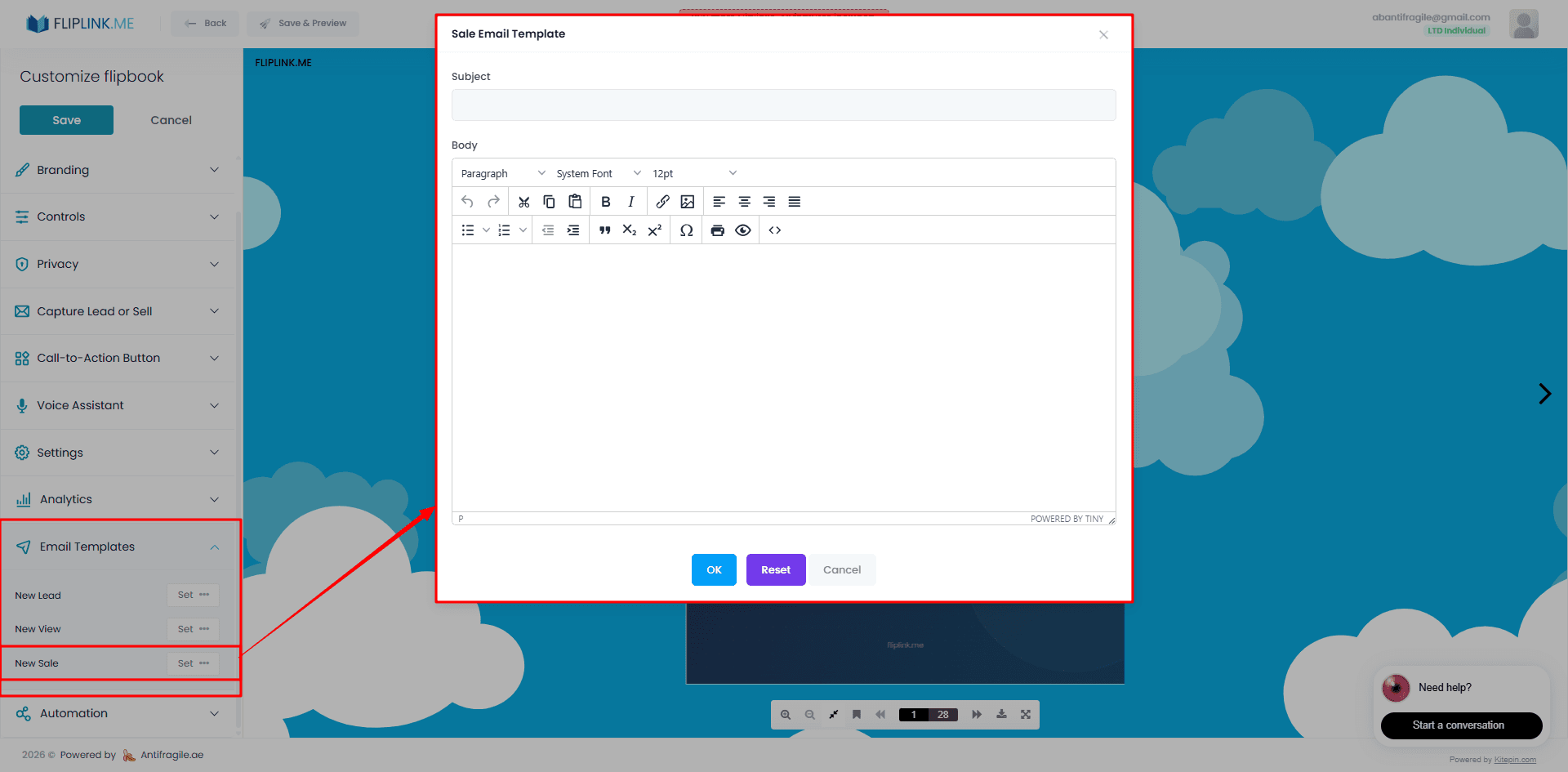
- Email notifications — Get notified every time someone makes a purchase
This data helps you understand what content resonates, where readers lose interest, and how to price your next publication.
Important Notes Before You Start
There are two rules to keep in mind when using Sale mode:
Sale mode requires a CNAME custom domain. You cannot sell publications on the default FlipLink URL. This is by design — buyers trust branded domains. Set up your custom domain first.
Sale mode and Lead Capture cannot be used together. A publication is either gated by payment (Sale mode) or gated by an email form (Lead Capture), not both. If you want to collect emails AND sell content, use Lead Capture on a free teaser publication that links to your paid one.
For additional security, you can combine Sale mode with Password Protection to create exclusive, invite-only paid content.
Use Cases: What Can You Sell?
The creators already selling through FlipLink cover a wide range of content types:
- Ebooks and guides — Self-published authors selling directly to their audience without Amazon taking a cut
- Industry reports — Consultants and analysts monetizing their research
- Educational materials — Course creators selling workbooks, lesson plans, and training manuals
- Digital magazines — Independent publishers running paid subscriptions
- Design templates — Designers selling Canva templates, brand guidelines, and media kits
- Photography portfolios — Photographers selling premium photo books
- Business proposals — Agencies selling strategy documents and audit reports
- Recipe collections — Food creators monetizing their best recipes as beautifully designed flipbooks
The common thread is simple: if someone would pay for your PDF, you can sell it through FlipLink. And because buyers interact with it in the browser rather than downloading a file, your content stays protected while delivering a premium reading experience.
Start Selling Today
Setting up your first paid publication takes about 10 minutes. Sign up for FlipLink, connect Stripe, set up your custom domain, and upload your PDF.
The Lifetime Deal is from $39 with unlimited custom domains — no monthly fees, no transaction fees from FlipLink, and no limits on revenue. Stripe's standard processing fees apply.
Turn your PDFs into a revenue stream. Get started with FlipLink now.
Ready to Create Your First Flipbook?
Transform your PDFs into interactive flipbooks and documents. Get started with FlipLink's Lifetime Deal — lifetime access that starts at just $39.
Pay Once, Use Forever
10, 50 or 100 flipbooks · All 35 features · Unlimited domains
No feature gates. Every Lifetime Deal tier unlocks all 35 features.
- Every feature unlocked — no feature gates
- Stackable — buy more codes anytime
- Replaceable — swap old for new
- Unlimited custom domains (CNAME)
- No recurring fees, ever
Related Reading
How to Set Up a Paywall for Your Digital Publication
Monetize your flipbooks and documents with a Stripe-powered paywall — accept payments in 130+ currencies.
Best Tools to Sell PDFs Online
Compare the best platforms for selling PDFs and digital documents online including pricing, features, and reader experience
How to Sell a PDF Online: The Complete Guide
Everything you need to know about selling PDFs online, from choosing a platform to setting up payments and delivering your content securely.