
Preview PDF Before the Gate: Increase Lead Form Conversions
Let readers preview a few pages before requiring their email — this simple trick can double your lead form conversion rate.

Published on March 7, 2026 · 6 min read
You spent weeks creating a killer PDF — a detailed guide, a research report, or an industry whitepaper. You upload it, slap a lead form in front of it, and wait for the emails to roll in.
Instead, you get a 70% bounce rate. Visitors land on the page, see a form demanding their email before they can read a single word, and leave. Can you blame them?
There's a better way. Let people preview content before lead form gates appear, and you'll see dramatically higher conversion rates.
Why Hard-Gating Content Hurts Conversions
A hard gate means visitors must fill out a form before seeing anything. No preview, no teaser, no proof that the content is worth their email address.
Here's why that backfires:
- No trust established — visitors don't know if your content is relevant or high-quality
- High friction — asking for personal information before delivering any value feels one-sided
- Mobile abandonment — typing an email on a phone just to peek at a PDF is a big ask
- Ad spend wasted — if you're driving paid traffic to gated content, every bounce is money lost
The fix isn't removing the gate entirely. You still want leads. The fix is letting readers sample the content first.
How Preview Pages Work
The concept is simple: show the first few pages of your flipbook or document freely, then display the lead capture form when the reader tries to go further.
Think of it like a bookstore. You pick up a book, flip through the first chapter, and decide if it's worth buying. Nobody wraps books in plastic and asks for your phone number before you can read the cover.
With FlipLink's lead capture feature, you control exactly how many pages visitors can preview before the gate appears. The reader browses your 3D flipbook, gets hooked on the content, and then willingly provides their email to continue reading.
Setting Up Preview Pages in FlipLink
Getting this working takes about 30 seconds:
- Upload your PDF — FlipLink converts it into an interactive flipbook or scrollable document
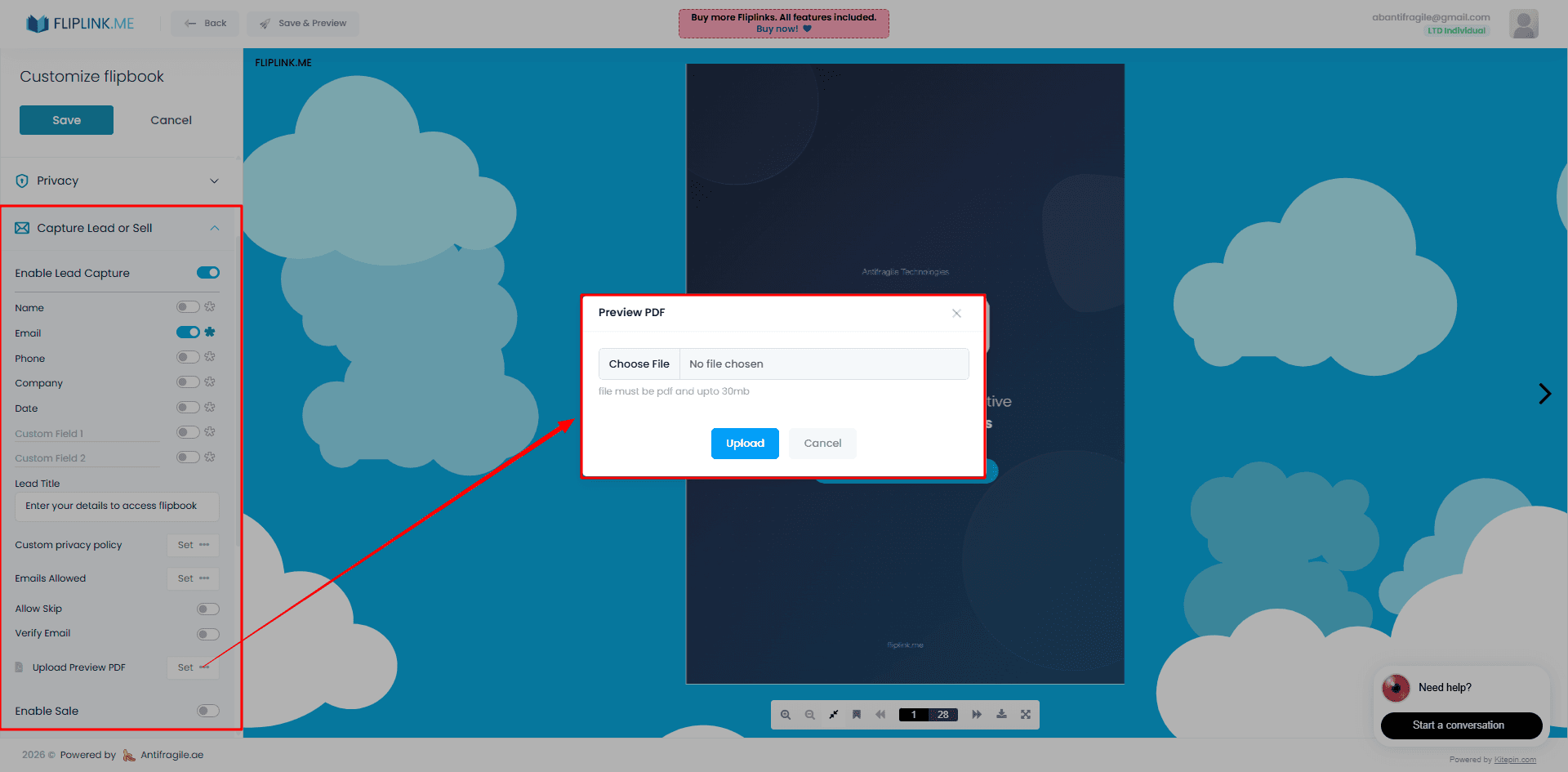
- Enable Lead Capture — toggle it on from your flipbook settings
- Set preview page count — choose how many pages readers can view for free
- Customize your form — add the fields you need (email, name, company, etc.)
- Publish — share via link, embed on your site, or distribute with a QR code
When a visitor reaches the preview limit, the lead form slides in. After submitting, they get full access. No downloads, no email attachments — just seamless reading.
For a deeper walkthrough, check out our guide on how to capture leads with a flipbook.
How Many Pages Should You Preview?
This is the most common question, and the answer depends on your content type. Here are some guidelines:
- Short PDFs (under 10 pages) — preview 2–3 pages. Enough to show quality without giving everything away.
- Long reports (20–50 pages) — preview 4–6 pages. Let readers see the table of contents, executive summary, and the start of the first section.
- Catalogs and brochures — preview 3–5 pages. Show a few product highlights to build interest.
- Educational materials — preview the introduction and first lesson. For ideas on using flipbooks in education, see our educational materials use case.
The golden rule: give enough to prove value, but stop before the reader gets what they came for.
Free: Pdf Viewer
Create an embeddable scrollable PDF viewer for your website.
Try it free — no sign-up neededPreview vs. Hard Gate: Conversion Comparison
| Metric | Hard Gate (No Preview) | With Preview Pages |
|---|---|---|
| Bounce rate | Higher | Lower |
| Form submission rate | Lower | Significantly higher |
| Time on page | Brief | Much longer |
| Lead quality | Lower (curiosity clicks) | Higher (engaged readers) |
| Email unsubscribe rate | Higher | Lower |
The numbers speak for themselves. When visitors preview content before the gate, they self-qualify. They've already decided the content is relevant to them, so they're more willing to exchange their email for it.
This is especially powerful for marketing reports and industry research where credibility matters.
Combine Preview with OTP Verification
Want to go a step further? FlipLink supports OTP (one-time password) email verification for lead capture forms. Here's why that matters:
- No fake emails — readers must verify their address with a code sent to their inbox
- Higher lead quality — every email in your list is confirmed and real
- Better deliverability — your follow-up emails won't bounce
Pair preview pages with OTP verification and you get a pipeline of genuinely interested, verified leads. That's the kind of list that actually converts into customers.
The Ideal Lead Capture Flow
- Visitor finds your flipbook (via link, embed, QR code, or search)
- They browse the preview pages and see the content is high-quality
- The lead form appears — they enter their email willingly
- OTP code arrives in their inbox — they verify
- Full access unlocked — they continue reading
- You get a verified, engaged lead in your pipeline
Quick Tips for Higher Conversions
- Keep your form short — email only converts best. Add name if you must, skip everything else.
- Write a compelling gate message — tell readers exactly what they'll get after submitting.
- Make the preview irresistible — front-load your best insights in the preview pages.
- Test different preview lengths — try 3 pages vs. 5 pages and measure which converts better.
- Use analytics — FlipLink tracks views, form submissions, and engagement so you can optimize over time.
For a complete breakdown of gating strategies, read our guide on how to gate content with a lead form.
Start Converting More Leads
Letting visitors preview content before lead form gates is one of the simplest changes you can make — and one of the most impactful. You'll reduce bounce rates, increase form submissions, and build a list of genuinely interested readers.
FlipLink makes it easy to set up preview pages, customize your lead form, and verify emails with OTP — all without writing a single line of code.
Create your free FlipLink account and start capturing better leads today. Check out our pricing page to see how the lifetime deal works — one code, 100 active flipbooks, no monthly fees.
Ready to Create Your First Flipbook?
Transform your PDFs into interactive flipbooks and documents. Get started with FlipLink's Lifetime Deal — lifetime access that starts at just $39.
Pay Once, Use Forever
10, 50 or 100 flipbooks · All 35 features · Unlimited domains
No feature gates. Every Lifetime Deal tier unlocks all 35 features.
- Every feature unlocked — no feature gates
- Stackable — buy more codes anytime
- Replaceable — swap old for new
- Unlimited custom domains (CNAME)
- No recurring fees, ever
Related Reading
How to Create a Lead Magnet: A Step-by-Step Guide
A practical step-by-step guide to creating a lead magnet that converts — pick the topic, build the asset, gate it behind an email form, and capture every lead.
15 Lead Magnet Examples & Ideas That Convert in 2026
Browse 15 proven lead magnet examples by goal and industry — checklists, eBooks, templates, catalogs, and more — plus how to gate each one behind an email form.
What Is a Lead Magnet? Definition, Types & Examples
Learn what a lead magnet is, why it works, the types that convert best, and how to gate one behind an email form so every download becomes a qualified lead.