
Manage Flipbooks in Bulk: Delete & Organize
Use bulk operations in FlipLink to delete, move, and organize flipbooks efficiently. Master folder strategies for a tidy library.

Published on February 24, 2026 · 8 min read
Why Bulk Management Matters
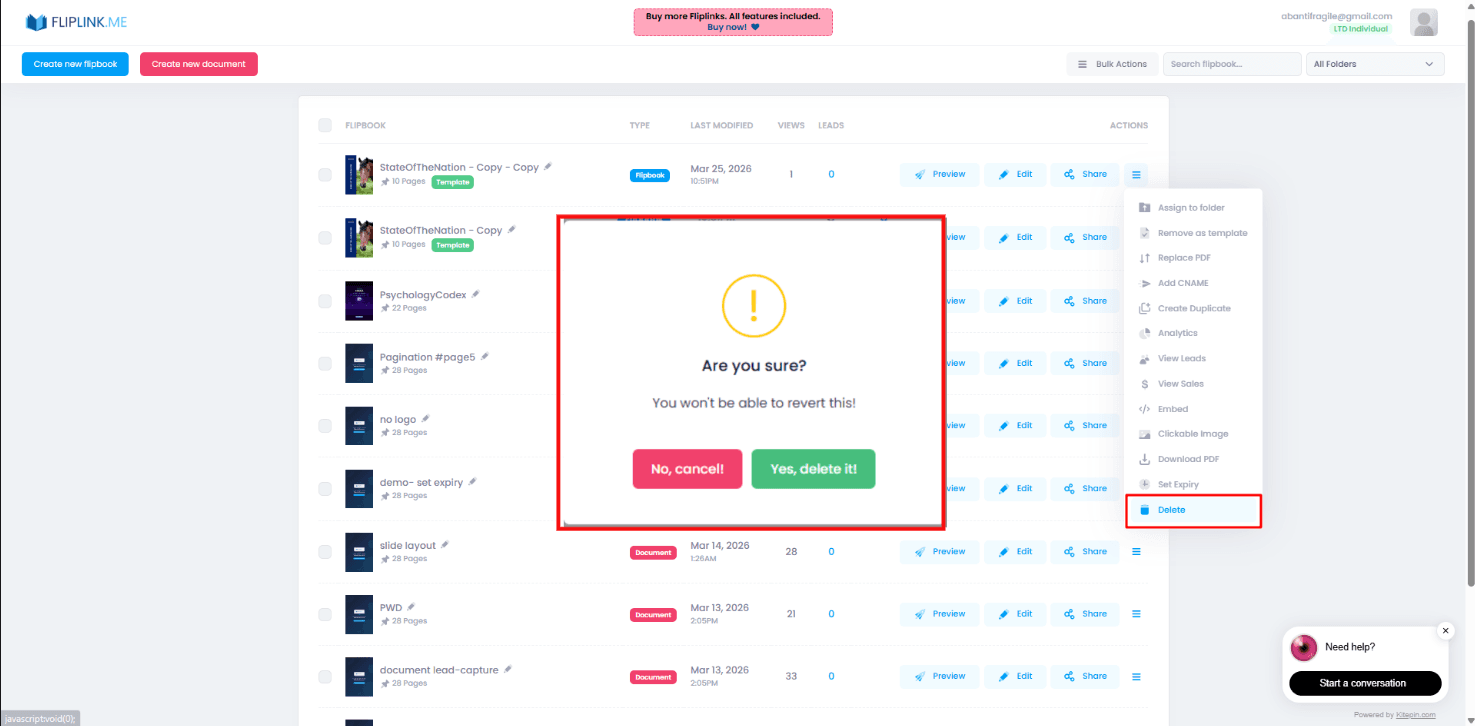
When you first start creating flipbooks, managing them is straightforward. You have a handful of publications, and finding the right one takes seconds. But as your library grows to dozens or even hundreds of flipbooks — across campaigns, departments, seasons, and clients — things get unwieldy fast.
Scrolling through a flat list of publications to find what you need wastes time. Deleting outdated content one by one is tedious. Moving files into folders individually feels like digital busywork. That's exactly why bulk operations exist in FlipLink: to help you manage your entire library at scale without the friction.
Whether you're a marketing team publishing monthly catalogs, a real estate agency cycling through property listings, or an educator distributing course materials each semester, bulk management keeps your workspace clean and your workflow efficient.
Selecting Multiple Flipbooks at Once
The foundation of every bulk action is selection. In FlipLink, selecting multiple flipbooks is simple and intuitive.
How to Select
- Click the checkbox on any flipbook card to select it individually
- Use select all to grab every flipbook in your current view or folder
- Mix and match — select specific items across your library by clicking each one
Once you've selected two or more flipbooks, the bulk action toolbar appears at the top of your dashboard. This toolbar gives you instant access to delete, move, and other batch operations without navigating away from your current view.
Pro Tip: Filter Before Selecting
If you only need to act on a subset of your library, use search or folder navigation to narrow the view first. Then use select all to grab exactly the items you want. This two-step approach — filter, then select — is far faster than hunting through your entire collection.
Bulk Delete: Removing Outdated Publications
Over time, your library accumulates flipbooks that are no longer relevant. Expired promotions, old product catalogs, outdated training manuals, and past event programs all take up space and clutter your dashboard.
When to Bulk Delete
- Seasonal content has expired — last quarter's sale catalog, holiday promotions, or event programs
- Content has been replaced — an updated version of a brochure or manual is live
- Test publications — drafts, experiments, or duplicates created during content development
- Client projects are complete — deliverables have been handed off and no longer need to be hosted
How to Bulk Delete
- Navigate to the folder or view containing the flipbooks you want to remove
- Select the flipbooks using checkboxes or select all
- Click the Delete button in the bulk action toolbar
- Confirm the deletion in the dialog
Deleted flipbooks free up your active slots immediately. If you're on a lifetime deal, remember that your plan covers a set number of active flipbooks — removing old ones frees capacity for new publications without purchasing additional codes.
A Word of Caution
Deletion is permanent. Before bulk deleting, double-check that none of the selected flipbooks are still linked from live websites, emails, or social media posts. Broken links create a poor experience for your audience.
Bulk Move: Organizing Into Folders
Moving flipbooks into folders is the single most impactful thing you can do for library organization. Bulk move lets you do this efficiently, even with a large backlog of unsorted content.
How to Bulk Move
- Select the flipbooks you want to relocate
- Click Move in the bulk action toolbar
- Choose the destination folder from the picker (or create a new folder on the spot)
- Confirm the move
All selected flipbooks instantly appear in the target folder, and your source view updates to reflect the change.
Reorganizing an Existing Library
If you've been using FlipLink for a while without folders, a bulk reorganization session can transform your experience. Here's a practical approach:
- Create your folder structure first — set up top-level folders before moving anything
- Work in batches — sort by type, client, or date and move groups at a time
- Use the search function to find related items (e.g., search for a client name, then bulk move all results)
- Pin your most-used folders for quick access after reorganizing
A focused thirty-minute session can clean up months of accumulated clutter.
Free: Pdf To Flipbook
Turn your PDF into a beautiful 3D page-flipping flipbook.
Try it free — no sign-up neededUsing Folders and Pins for Efficient Navigation
Bulk operations are most powerful when paired with a thoughtful folder structure. Think of folders as the skeleton of your library and pins as your bookmarks.
Folder Structure Strategies
Choose a structure that matches how you think about your content:
By Client or Brand
├── Client A
│   ├── Brochures
│   └── Reports
├── Client B
│   ├── Catalogs
│   └── Presentations
└── Internal
By Content Type
├── Product Catalogs
├── Training Materials
├── Marketing Collateral
├── Event Programs
└── Proposals
By Time Period
├── Q1
├── Q2
├── Q3
├── Q4
└── Evergreen
Hybrid Approach
├── Active Campaigns
├── Client Deliverables
│   ├── Client A
│   └── Client B
├── Templates
└── Archive
The best structure is the one your team will actually use. Keep it simple — two levels of nesting is usually enough.
Pinning for Quick Access
Pin your most frequently accessed flipbooks or folders to the top of your dashboard. Pins are especially useful for:
- Active campaigns that you check or share daily
- Templates you duplicate regularly
- High-traffic publications that need monitoring
For a deeper dive into organizing your library, check out our guide on how to organize flipbooks with folders, pins, and bulk actions.
Bulk Editing Tips
Beyond delete and move, there are several ways to apply changes across multiple flipbooks efficiently.
Shared Settings Updates
When you need to update a setting across several publications — such as toggling lead capture, changing a custom domain, or updating branding — consider these approaches:
- Group related flipbooks in a folder first, then work through them systematically rather than searching for each one
- Use naming conventions to identify which flipbooks share configurations (e.g., prefix client names or campaign codes)
- Duplicate a configured flipbook as a template when creating new publications that need identical settings
Naming Conventions That Scale
A consistent naming convention makes bulk operations far more effective because you can search, filter, and identify content at a glance:
- Include the content type:
Catalog - Spring CollectionorReport - Annual Summary - Add client or brand identifiers:
[ClientA] Product Brochureor[Internal] Onboarding Guide - Use date markers sparingly: Avoid hard-coding years in names; use quarters or seasons instead (e.g.,
Q1 Newsletterrather than a specific year) - Keep names descriptive but concise: Long enough to identify, short enough to scan
Best Practices: Building a Cleanup Routine
The most organized teams don't just clean up once — they build regular maintenance into their workflow.
Monthly Cleanup Checklist
- Review active flipbooks: Are all of them still in use? Archive or delete anything that's expired
- Check for duplicates: Search for similar names and consolidate
- Verify folder structure: Do your folders still reflect your current projects and clients?
- Unpin stale items: Remove pins from flipbooks or folders you no longer access daily
- Free up active slots: Delete test publications and outdated drafts to maintain capacity
Quarterly Deep Clean
Every quarter, take thirty minutes to:
- Audit your entire folder structure and rename or merge folders as needed
- Bulk delete all content from completed campaigns or past clients
- Review your naming conventions and update any inconsistent titles
- Check that pinned items still reflect your current priorities
Team Handoff Protocol
If multiple team members manage flipbooks, establish a simple protocol:
- Agree on a shared folder structure and naming convention
- Designate who is responsible for cleanup in each folder or client area
- Use descriptive names so anyone can understand what a flipbook contains without opening it
Putting It All Together
Effective flipbook management at scale comes down to three habits:
- Organize proactively — create folders and use naming conventions from day one
- Act in bulk — never delete or move one at a time when you can batch the operation
- Maintain regularly — schedule brief monthly cleanups to prevent clutter from accumulating
FlipLink's bulk operations and folder system are designed to make these habits effortless, even as your library grows into the hundreds.
Get Started
Ready to take control of your flipbook library? Create your free FlipLink account and start organizing your publications today. Check out our pricing page — a lifetime deal from $39 with every feature included.
Ready to Create Your First Flipbook?
Transform your PDFs into interactive flipbooks and documents. Get started with FlipLink's Lifetime Deal — lifetime access that starts at just $39.
Pay Once, Use Forever
10, 50 or 100 flipbooks · All 35 features · Unlimited domains
No feature gates. Every Lifetime Deal tier unlocks all 35 features.
- Every feature unlocked — no feature gates
- Stackable — buy more codes anytime
- Replaceable — swap old for new
- Unlimited custom domains (CNAME)
- No recurring fees, ever
Related Reading
Organize Flipbooks: Folders, Pins & Bulk
Keep your FlipLink workspace tidy with folders, pinned favorites, and bulk operations for managing many publications.
How to Automate Your Entire Flipbook Publishing Workflow
Save hours by automating your flipbook publishing. From PDF upload to lead routing and notifications, automate every step.
5 Ways Templates Speed Up Your Digital Publishing Workflow
Save hours on every publication by using flipbook templates. Learn 5 practical ways templates streamline your digital publishing process.