
How to Share a Large PDF Online Without Email Attachments
Struggling with PDF file size limits? Learn the best ways to share large PDFs online including flipbooks, cloud links, and compressed sharing.

Published on January 28, 2026 · 7 min read
The Email Attachment Problem Nobody Talks About
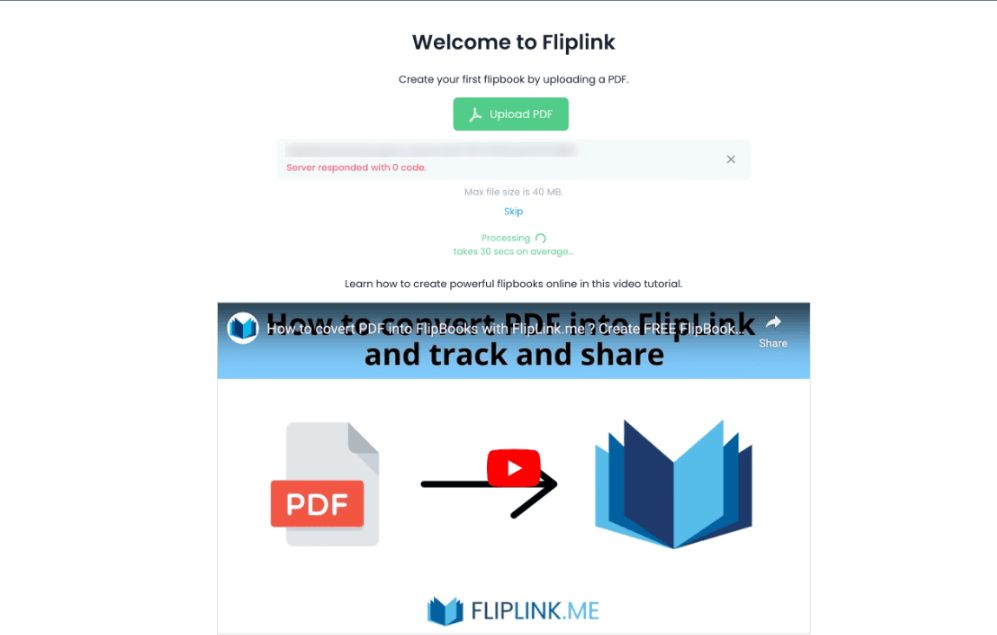
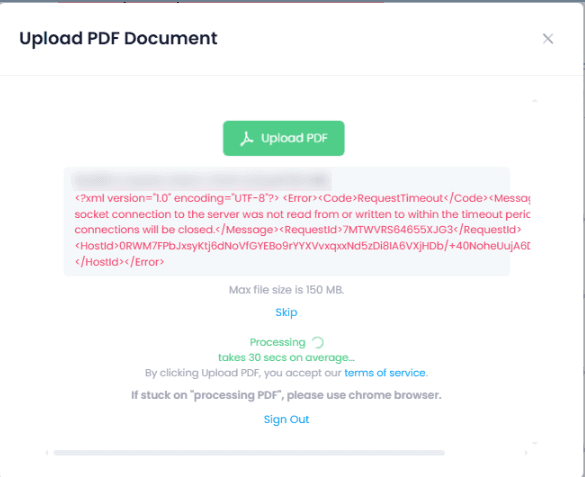
You've just finished a beautiful 80-page product catalog, a detailed annual report, or a media-rich training manual. It looks incredible. You hit “attach” in your email client and… nothing. The file is too large.
Most email providers cap attachments at 10–25 MB. Gmail stops at 25 MB. Outlook tops out at 20 MB. And if your PDF is packed with high-resolution images, embedded fonts, or detailed graphics, you'll blow past those limits before you even get halfway through.
The result? You end up compressing the file until it looks terrible, splitting it into awkward parts, or giving up and sending a bare link to a cloud folder. None of these feel professional.
The good news is that there are much better ways to share large PDFs online — methods that preserve quality, look polished, and actually let you track who's viewing your content. Let's walk through the four best options.
Method 1: Convert Your PDF to an Interactive Flipbook
This is the best approach if presentation matters to you — and it should, especially for client-facing documents, marketing materials, or anything where first impressions count.
Instead of sending a raw file, you upload your PDF to a platform like FlipLink and get back a shareable link to an interactive flipbook. The PDF renders with realistic 3D page-flip animations, works on any device, and loads fast regardless of the original file size.
Why this works so well for large files:
- No file size limits — your PDF is hosted on the platform, not squeezed through an email server
- Instant loading — pages load on demand, so recipients don't wait for a massive download
- Full quality preserved — no compression artifacts or blurry images
- Built-in tracking — see exactly who viewed your document with analytics and insights
- Access control — add password protection or set link expiry dates
The process takes about 30 seconds: upload your PDF, grab the link, and share it anywhere — email, Slack, WhatsApp, social media, or embedded on your website.
If you want to go deeper on embedding, check out our guide on how to embed a PDF on your website.
Method 2: Cloud Storage Links (Google Drive, Dropbox, OneDrive)
Cloud storage is the most common workaround people reach for. Upload your PDF to Google Drive, Dropbox, or OneDrive, then share the link.
Pros:
- Free for small storage amounts
- Most people already have an account
- Simple drag-and-drop upload
Cons:
- Recipients see a generic file viewer — no branding, no interactivity
- No analytics or tracking (you won't know who opened it)
- Permission management can be confusing (“Request access” errors are embarrassing)
- Large files can be slow to preview in the browser
- No password protection unless you pay for a business plan
Cloud links work fine for internal team sharing or quick one-offs. But for anything client-facing or public, the experience feels unpolished. Your beautifully designed catalog ends up in a clunky Google Docs viewer.
Method 3: File Transfer Services (WeTransfer, SendAnywhere)
File transfer services let you upload large files and send a temporary download link. WeTransfer is the most popular, with a free tier that supports files up to 2 GB.
Pros:
- Handles very large files (2 GB+ on free plans)
- No account needed for basic transfers
- Simple interface
Cons:
- Links expire after 7 days on free plans
- Recipients must download the file — no online preview
- No analytics or tracking
- No branding or customization
- Feels transactional, not professional
This method works when you genuinely need someone to download a massive file. But if you want people to actually read and engage with your PDF, forcing a download creates friction. Many recipients on mobile devices won't bother.
Turn Your PDF Into a Shareable Link
Upload a PDF and get a permanent, shareable URL. Your file is converted into an online flipbook anyone can view — no downloads needed.
Drop your PDF here or click to browse
Max 40MB
Paid plans from $39 raise this to 150 MB.
Method 4: Compress the PDF
Before sharing, you can try reducing the file size. Tools like Adobe Acrobat, Smallpdf, or iLovePDF can compress PDFs by downscaling images and removing embedded fonts.
Pros:
- Quick fix if your file is only slightly over the limit
- No third-party platform needed
- Works with existing email workflows
Cons:
- Image quality degrades — sometimes severely
- Compression has limits; a 200 MB file won't shrink to 10 MB
- You lose embedded fonts and interactive elements
- Still stuck with email attachment UX
- No tracking, no analytics, no branding
Compression is a band-aid, not a solution. It works in a pinch for simple text-heavy documents, but it ruins visual content like portfolios, catalogs, and reports with charts.
Comparison: All Methods Side by Side
| Feature | Flipbook (FlipLink) | Cloud Storage | File Transfer | Compression |
|---|---|---|---|---|
| File size limit | None | 5–15 GB | 2–5 GB | N/A (reduces size) |
| Quality preserved | Full quality | Full quality | Full quality | Degraded |
| Online viewing | Interactive flipbook | Basic viewer | Download only | Email attachment |
| Mobile experience | Excellent | Decent | Poor (download) | Depends on client |
| Analytics/tracking | Detailed views | None | None | None |
| Password protection | Built-in | Limited | Paid only | No |
| Link expiry control | Yes | Manual | Auto-expires | No |
| Branding | Custom domain, logo | None | Minimal | None |
| Recipient experience | Professional | Generic | Transactional | Basic |
| Best for | Client-facing docs | Internal sharing | One-time transfers | Quick fixes |
Which Method Should You Use?
The right choice depends on your audience and your goal.
Use a flipbook when:
- You're sharing with clients, prospects, or the public
- Presentation and branding matter
- You need to track engagement (who viewed what, for how long)
- The document will be shared repeatedly or embedded on a website
- You want sharing and distribution options beyond just a link
Use cloud storage when:
- You're sharing internally with your team
- The file needs collaborative editing
- You already use Google Workspace or Microsoft 365
Use a file transfer service when:
- The recipient specifically needs to download the raw file
- It's a one-time transfer you won't repeat
- The file is extremely large (over 1 GB)
Use compression when:
- The file is only slightly over the email limit
- Image quality isn't critical
- You're in a rush and need a quick fix
For most professionals — marketers, sales teams, educators, publishers — the flipbook approach gives you the best combination of quality, professionalism, and insight into how your content performs.
We also have a broader guide on how to share PDFs online without email that covers additional strategies worth exploring.
Stop Fighting File Size Limits
Large PDFs shouldn't be a headache. Instead of compressing your work into oblivion or wrestling with cloud permissions, turn your PDF into a hosted flipbook that looks incredible and loads instantly.
FlipLink lets you upload any PDF — no matter the size — and share it as an interactive flipbook with a single link. You get built-in analytics, password protection, link expiry, and a reading experience that actually impresses people.
Create your free flipbook now or check out our pricing page to see the lifetime deal from $39 per code.
Ready to Create Your First Flipbook?
Transform your PDFs into interactive flipbooks and documents. Get started with FlipLink's Lifetime Deal — lifetime access that starts at just $39.
Pay Once, Use Forever
10, 50 or 100 flipbooks · All 35 features · Unlimited domains
No feature gates. Every Lifetime Deal tier unlocks all 35 features.
- Every feature unlocked — no feature gates
- Stackable — buy more codes anytime
- Replaceable — swap old for new
- Unlimited custom domains (CNAME)
- No recurring fees, ever
Related Reading
How to Create a Shareable Link for Any PDF
Create a permanent shareable link for any PDF document that you can send via email, messaging apps, or embed on your website
Share PDFs Online Without Email (7 Ways)
Stop sending large PDF attachments by email. Discover 7 smarter ways to share PDFs online including flipbook links, QR codes, embeds, and more.
Getting Started with the FlipLink CLI
Install the FlipLink CLI, authenticate, and turn a PDF into a published, shareable flipbook from your terminal in a few commands.